MiniMax H3 Max AI Video Generator for Fast Product Concepts
Turn a product prompt or a packshot into short, polished motion with MiniMax H3 Max in Nextify.ai. Explore hooks, product actions, and visual directions quickly, then shape the selected clip into an e-commerce ad with your brand assets.
Build Faster Product Video Directions with MiniMax H3 Max
Move from a product brief to a focused video direction, then refine the result into an ad in Nextify.ai.
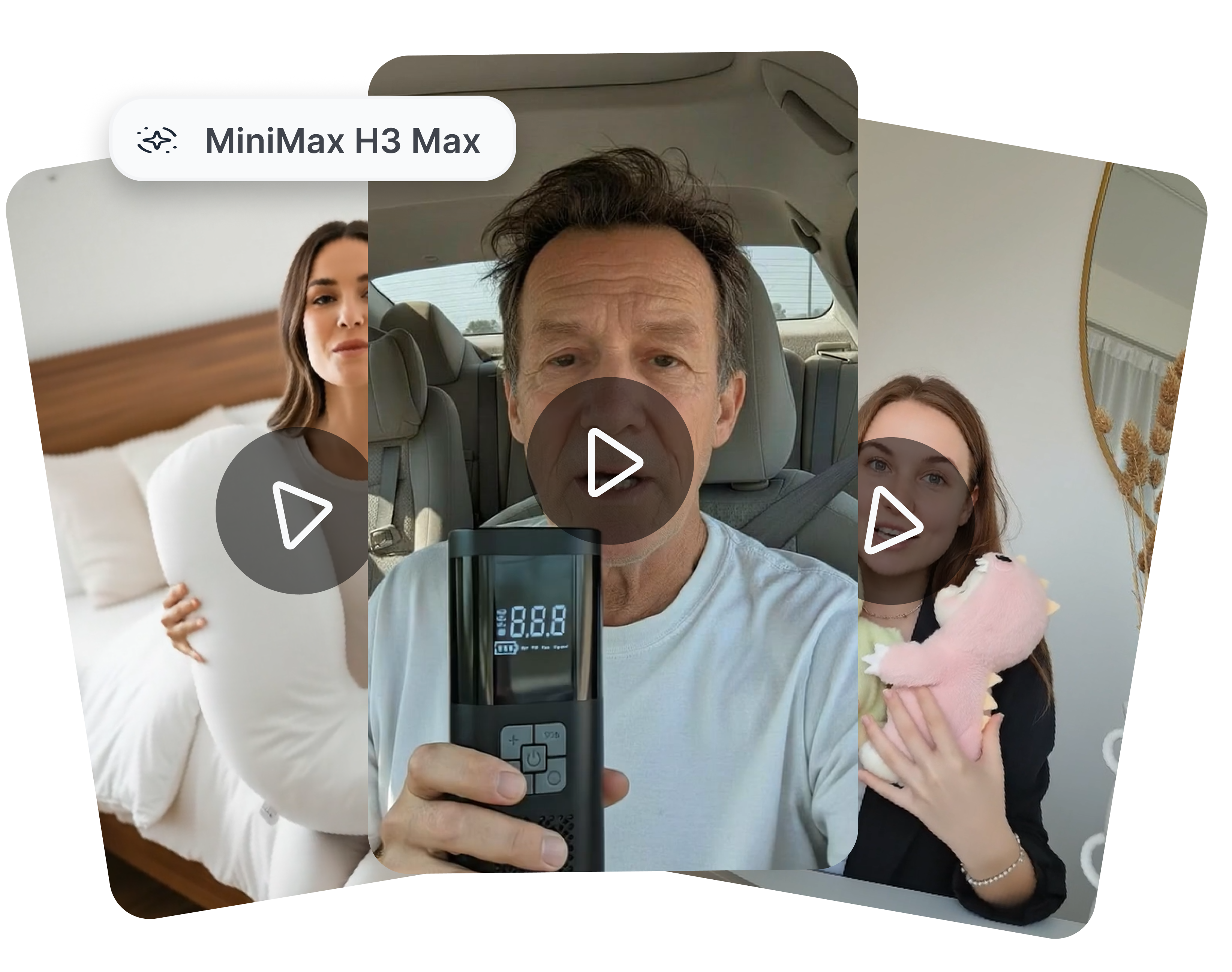
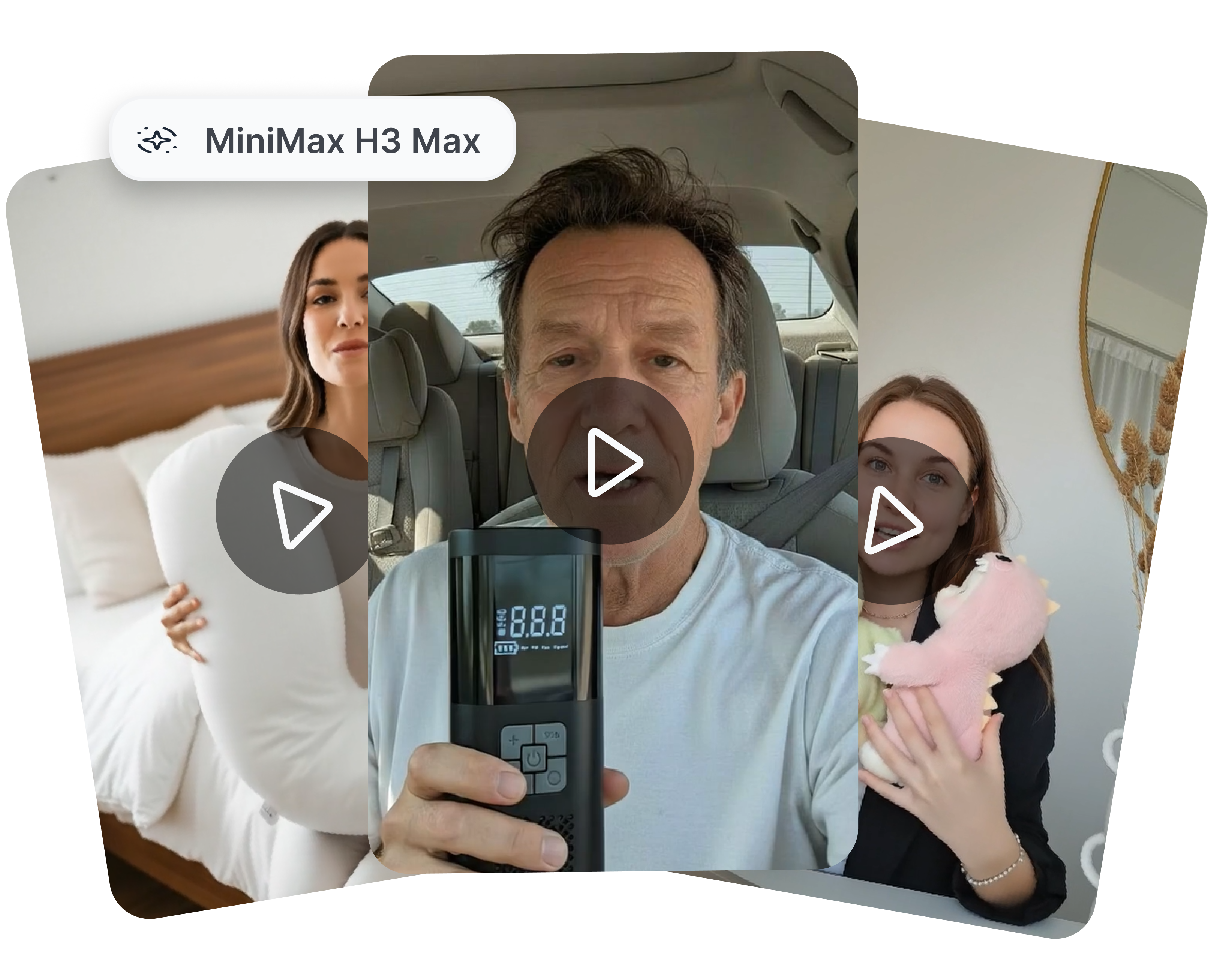
MINIMAX H3 MAX TEXT TO VIDEO AI
Give Every Product Shot a Clear Creative Instruction
Start with the product, the action, and the viewing angle you want. For a coffee grinder, describe beans pouring into the hopper, a close camera push, and warm morning counter light. For a travel backpack, ask for a hand to unzip the main compartment and reveal its storage layout. MiniMax H3 Max is designed around prompt adherence, so a more specific brief gives the model a more usable starting direction.
FAST AI VIDEO GENERATOR
Explore Hook Variations Before You Commit to a Cut
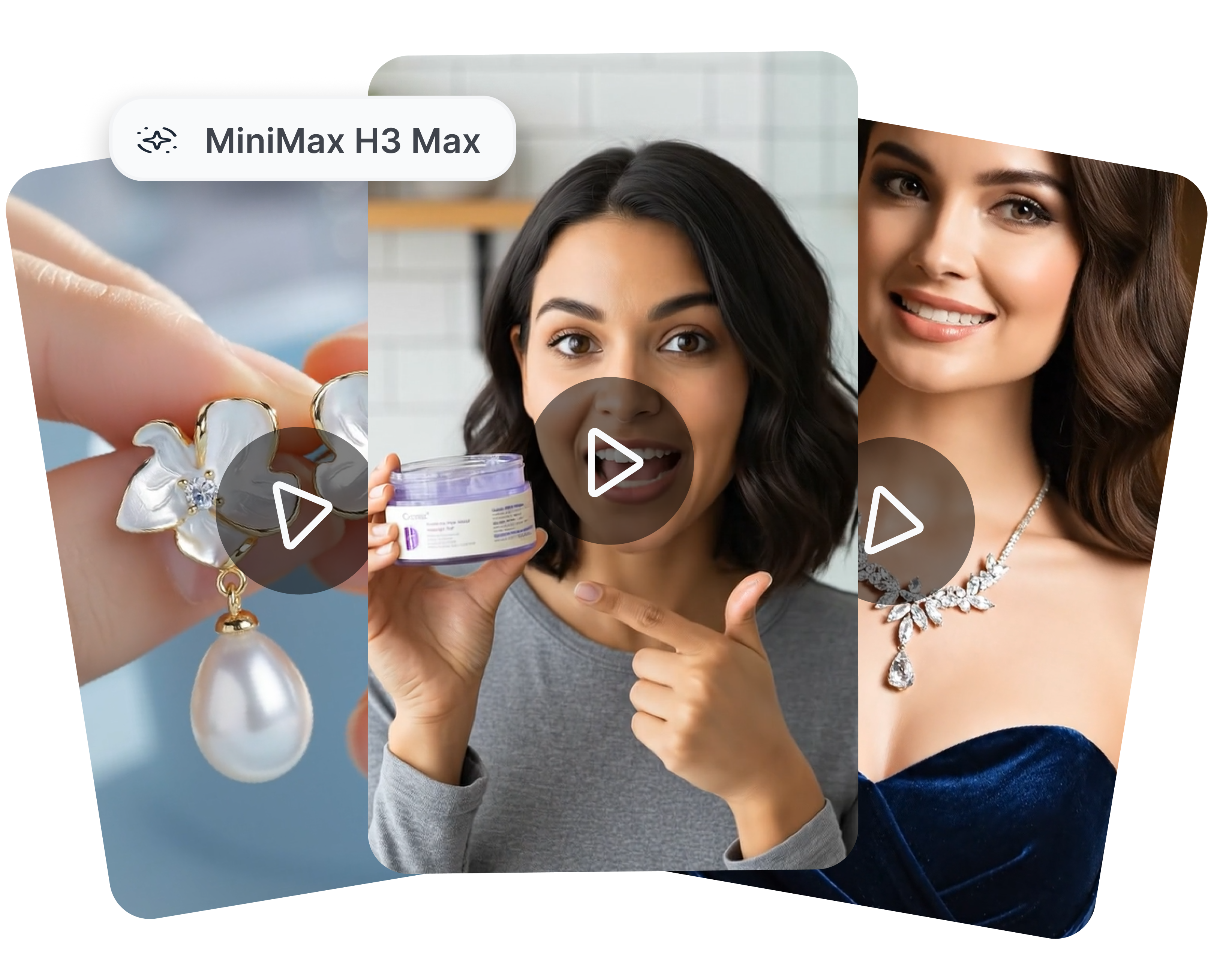
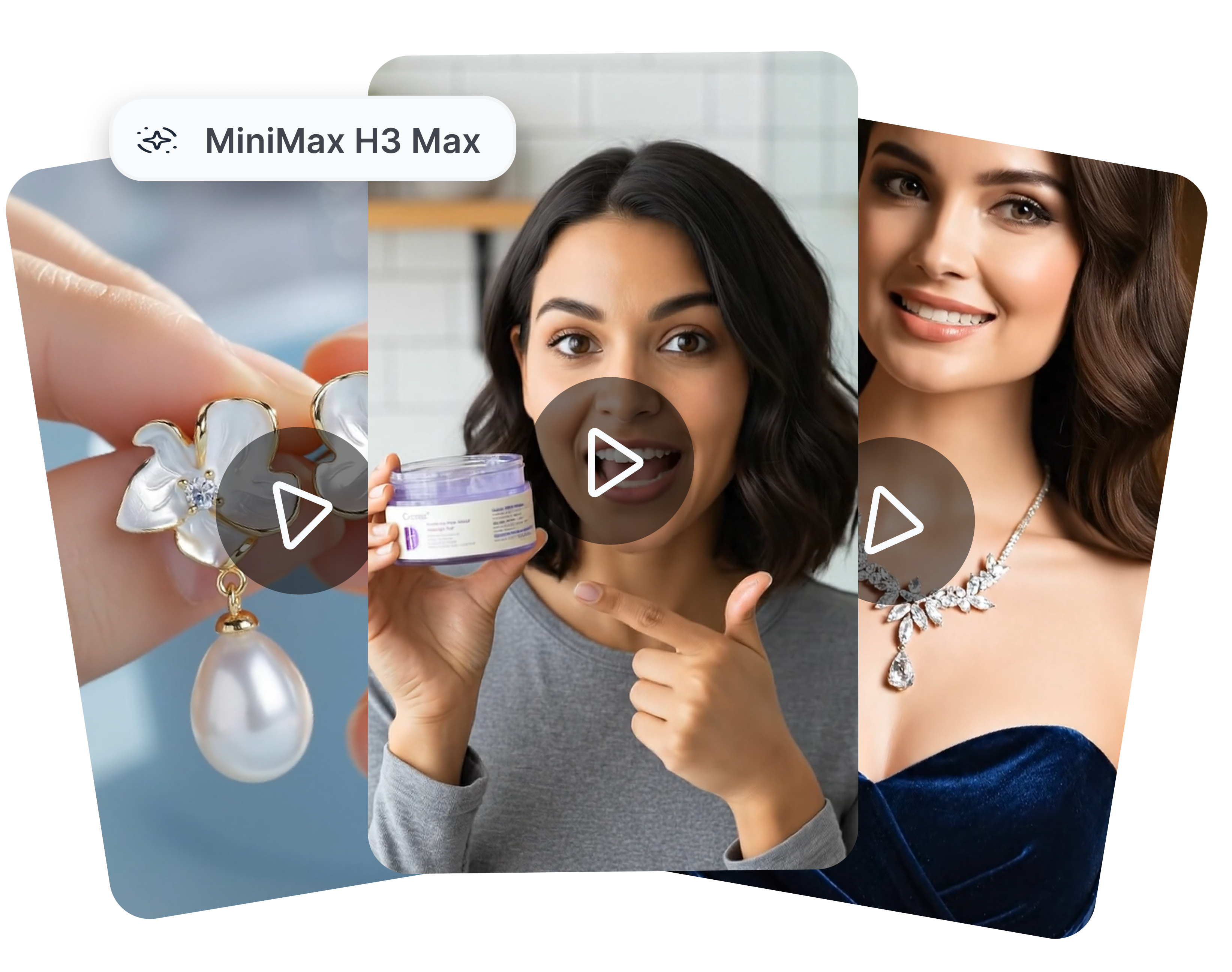
Use MiniMax H3 Max when you need to explore several ways into the same product story. Test a macro material reveal, a quick in-use moment, or a visual payoff that lands on the packshot. In Nextify, you can generate up to nine variants per run, compare the opening seconds, and keep the route that best matches the campaign message. This makes the model especially useful for early-stage creative exploration rather than one locked, long-form production.
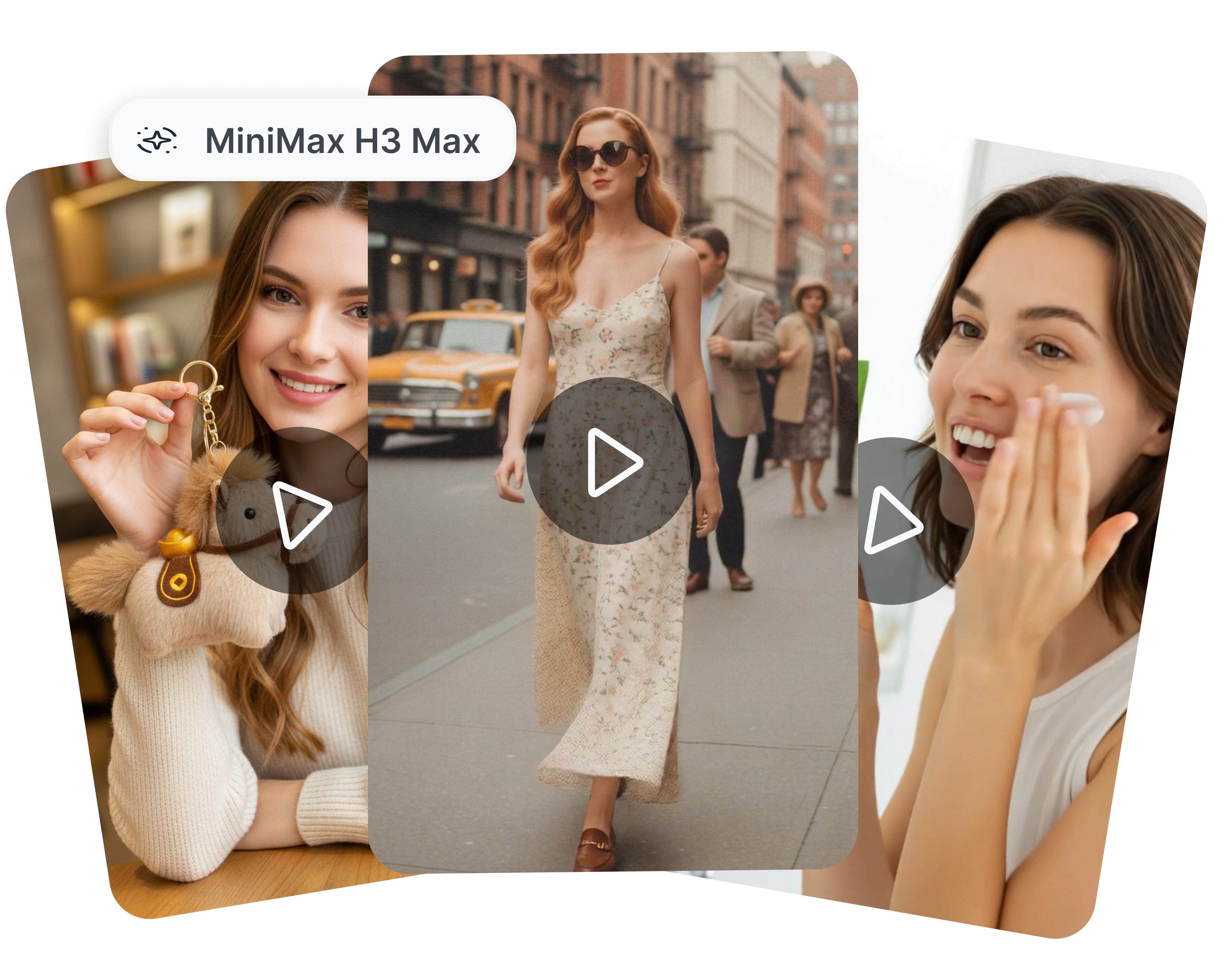
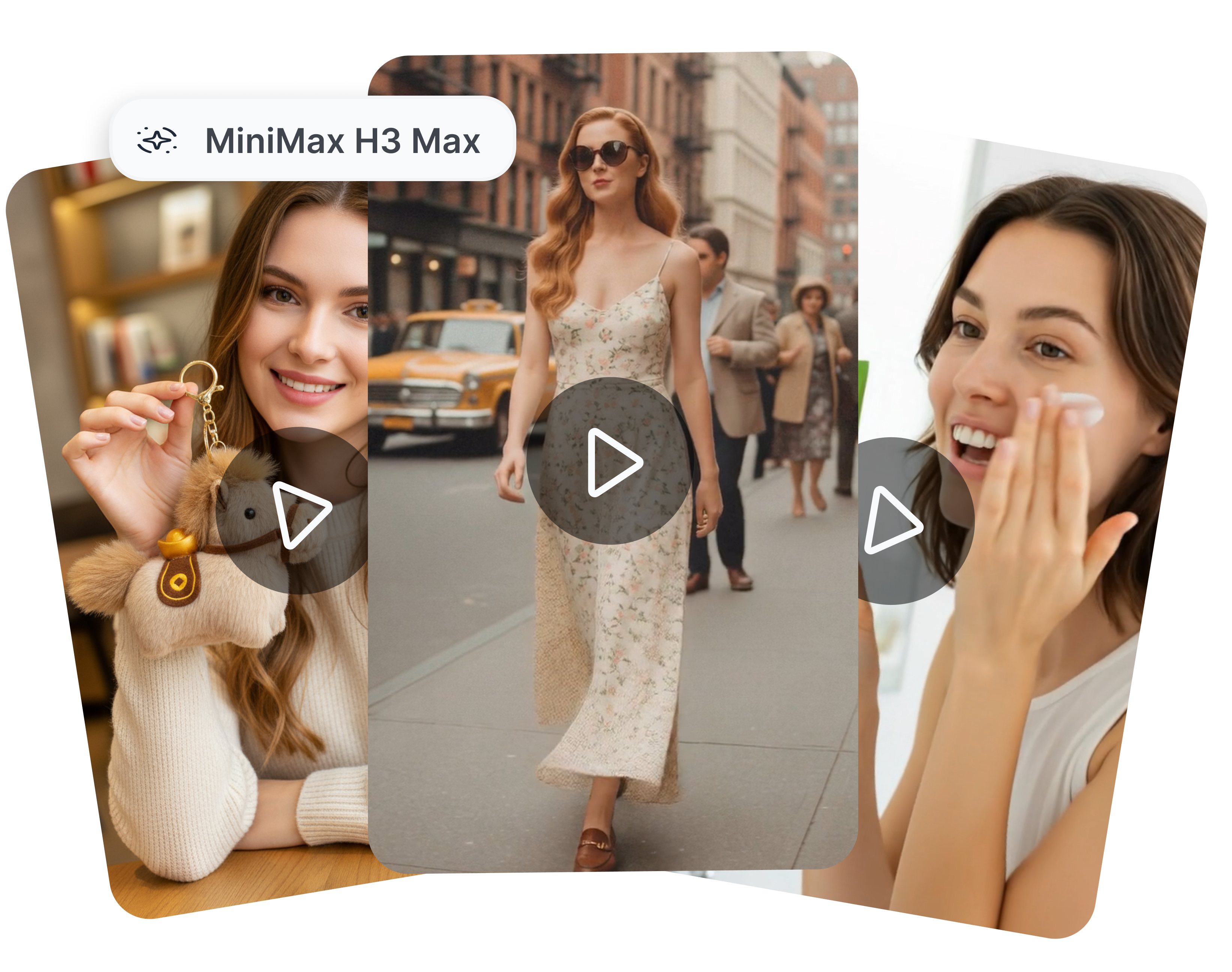
MINIMAX H3 MAX IMAGE TO VIDEO
Turn a Packshot into a Moving Product Moment
Bring a still product image into the video workflow when the item needs a little motion to communicate its value. Animate a serum bottle with a slow camera orbit and a glint across the label, or make a desk lamp switch on as the frame widens to show the workspace. H3 Max is available for both text-to-video and image-to-video workflows; use the product asset as a visual starting point and keep the prompt focused on one scene and one action.
AI PRODUCT VIDEO GENERATOR
Make a Short Clip Part of a Complete Ad
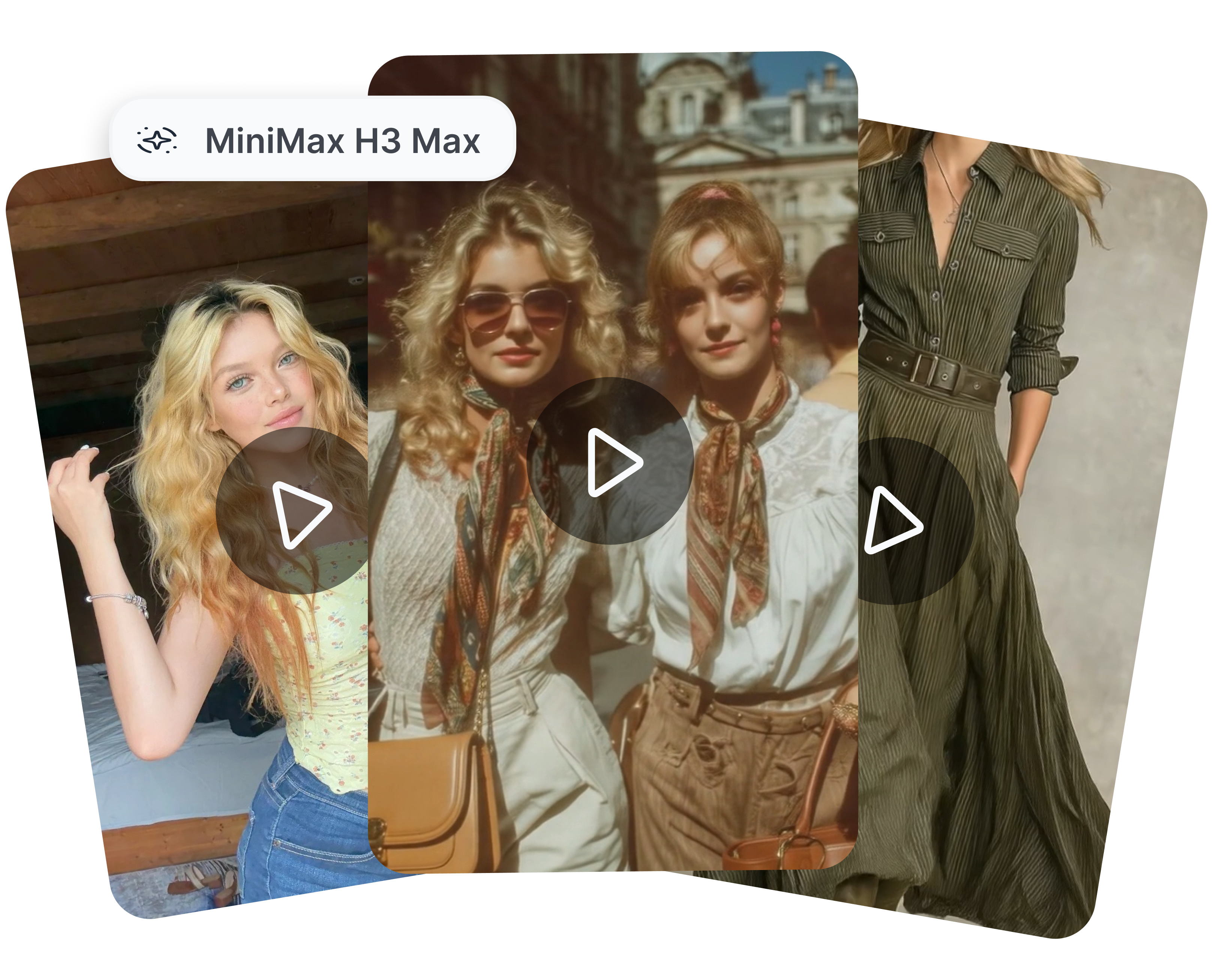
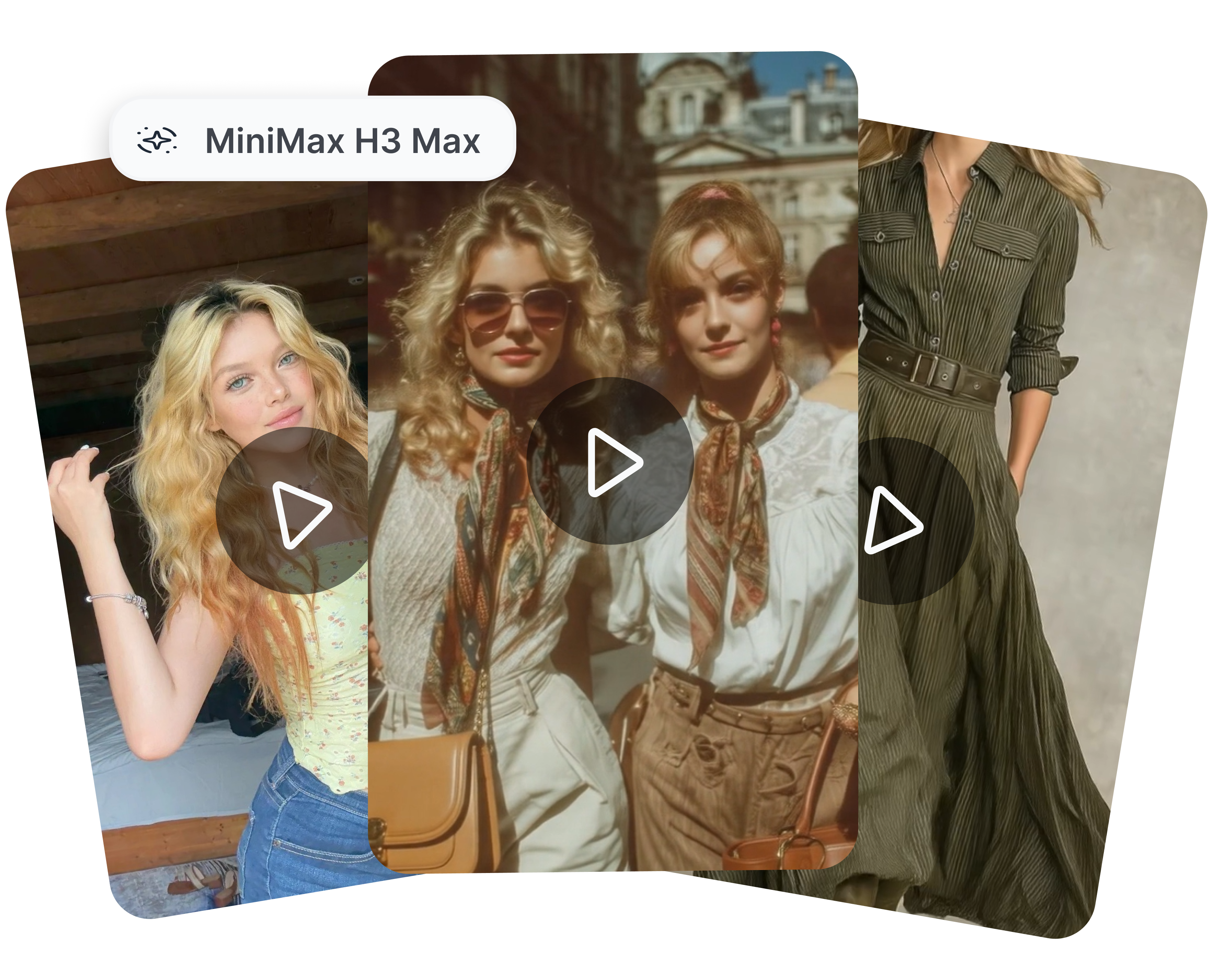
MiniMax H3 Max generates the motion concept; Nextify helps you turn that clip into campaign-ready creative. Add on-screen captions for an offer, place a voiceover over a product demo, adjust the framing for a vertical or horizontal placement, and download the version you want to review. A short generated scene can become the opening hook, a benefit demonstration, or a transition between product details in a larger ad.
How to Create a Product Video with MiniMax H3 Max
Automate your ad creation in three simple steps — no camera, no studio, just pure conversion.
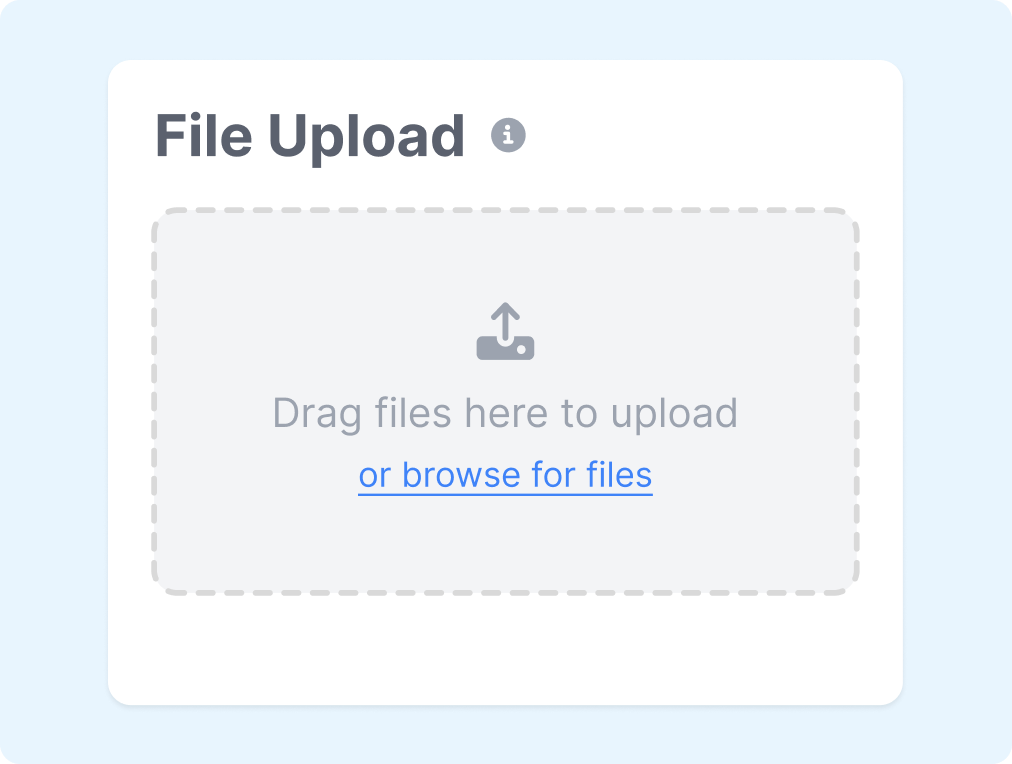
Step 1: Add a Product Asset or Write the Scene
Upload a clean product image, or begin with a text prompt that names the product, setting, action, camera movement, and visual mood.
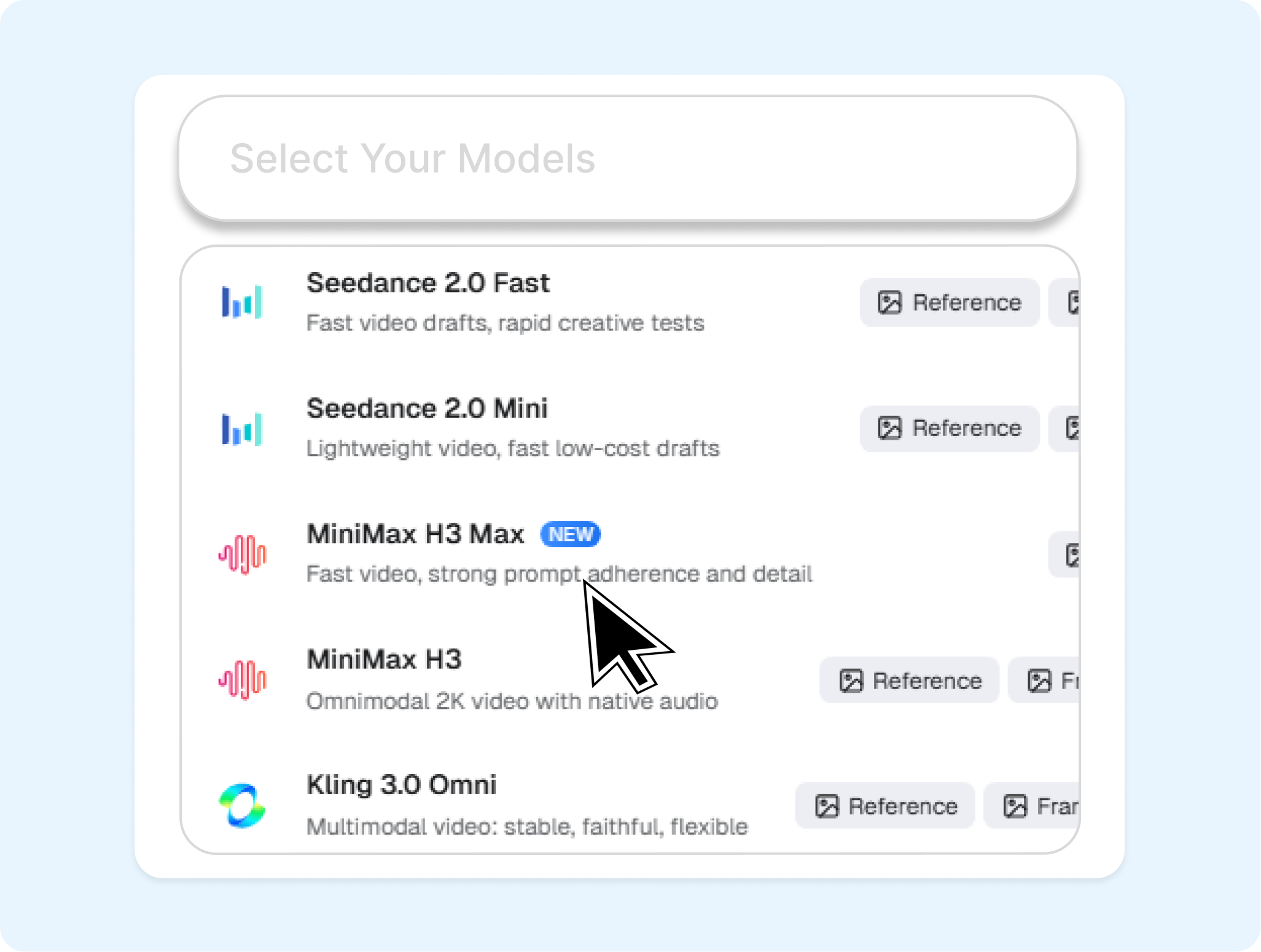
Step 2: Select MiniMax H3 Max and Set the Brief
Choose MiniMax H3 Max in Nextify.ai, then write one focused shot instruction, such as: close-up of a matte-black water bottle rotating on a sunlit stone surface, slow push-in, crisp commercial lighting.

Step 3: Generate, Select, and Refine the Ad Cut
Compare the generated directions, save the strongest clip, then add captions, music, voiceover, or other creative elements in Nextify.ai before downloading.
Explore More AI Video Models for E-commerce Creative
Choose a model based on the creative problem you need to solve, then use Nextify.ai to turn the result into an on-brand campaign asset.
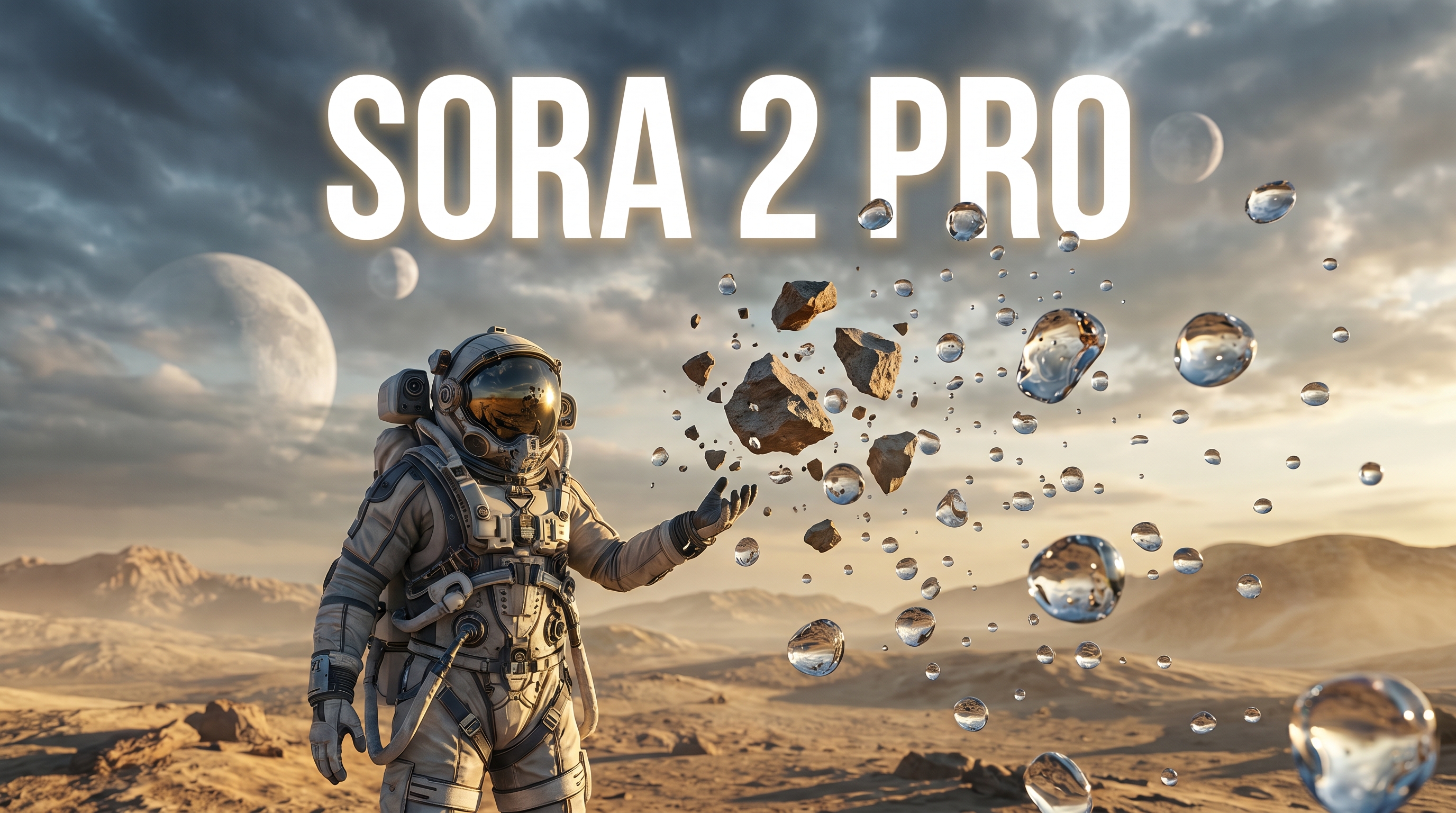
Sora 2 Pro
Use Sora 2 Pro when a campaign needs a more deliberate multi-scene storytelling route. It is a useful complement to H3 Max when you have moved beyond testing a single hook.
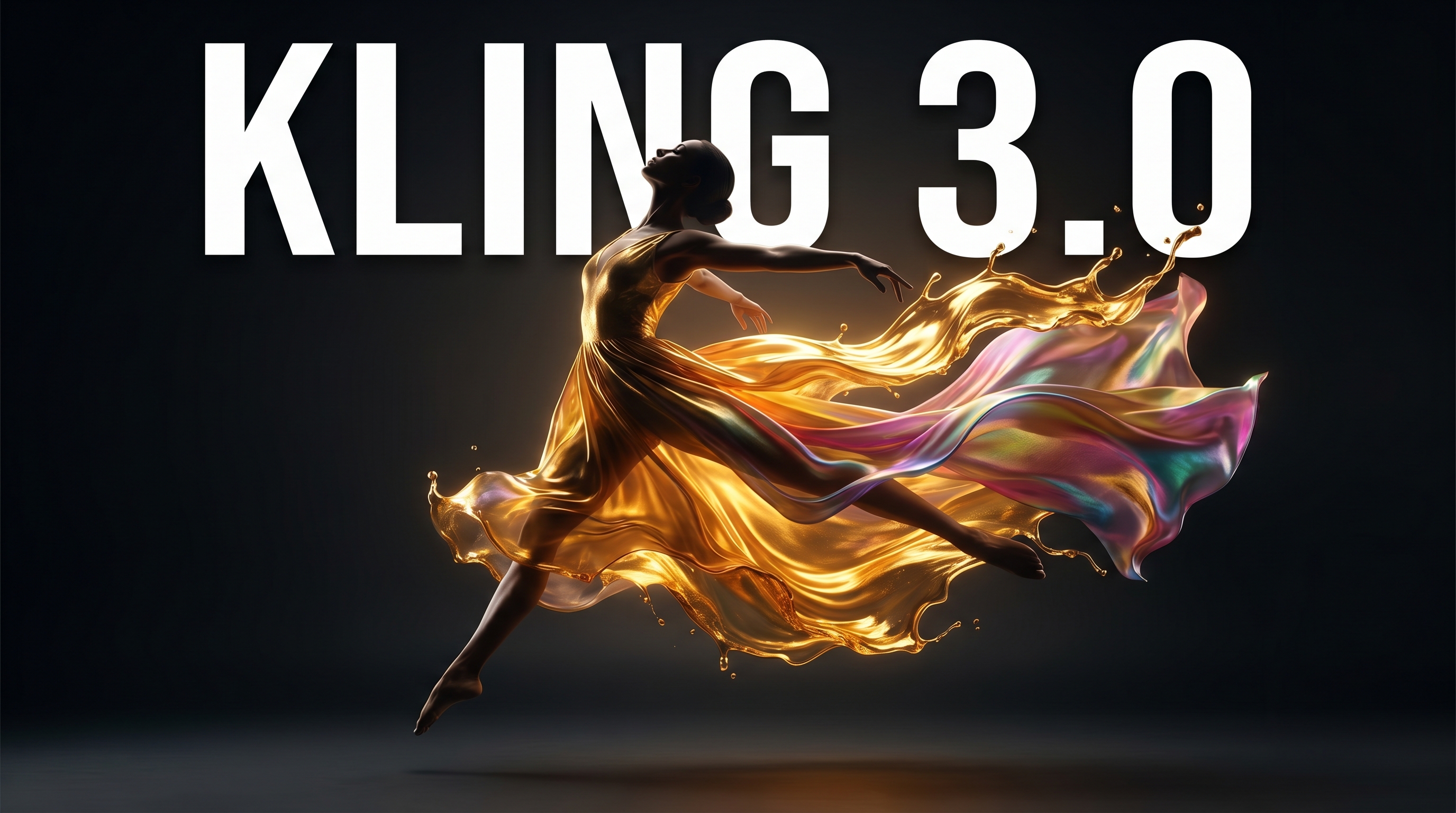
Kling 3.0
Explore Kling 3.0 for a different motion and visual-style direction. Compare its output with H3 Max when the campaign concept depends heavily on movement and atmosphere.
Vidu Q1
Choose Vidu Q1 for product-focused visual transitions and before-and-after ideas. It can complement H3 Max when the product change itself is the story.
OmniHuman
Bring in OmniHuman when the concept calls for a speaking human presenter. Use it alongside H3 Max to pair a product-motion scene with a presenter-led message.
FAQs
What is MiniMax H3 Max?
Is MiniMax H3 Max the same as MiniMax H3?
Why use MiniMax H3 Max for rapid video ideation?
Can I use a product image with MiniMax H3 Max?
What should I include in a MiniMax H3 Max prompt?
How can I use H3 Max clips in an e-commerce ad?
Does MiniMax H3 Max replace every other video model in Nextify.ai?
Turn the Next Product Idea into Motion with MiniMax H3 Max
Create a focused product-video direction from a prompt or image, then refine the selected result into an ad in Nextify.ai.