Power Your Ads: AI Video Ad Generator
Turn a product image, creative prompt, or reference clip into a ready-to-share video ad. Choose the format, actor, frame, and AI model while Nextify.ai builds the motion around your message. Start free with product demos, UGC-style ads, talking-head videos, unboxings, and more.
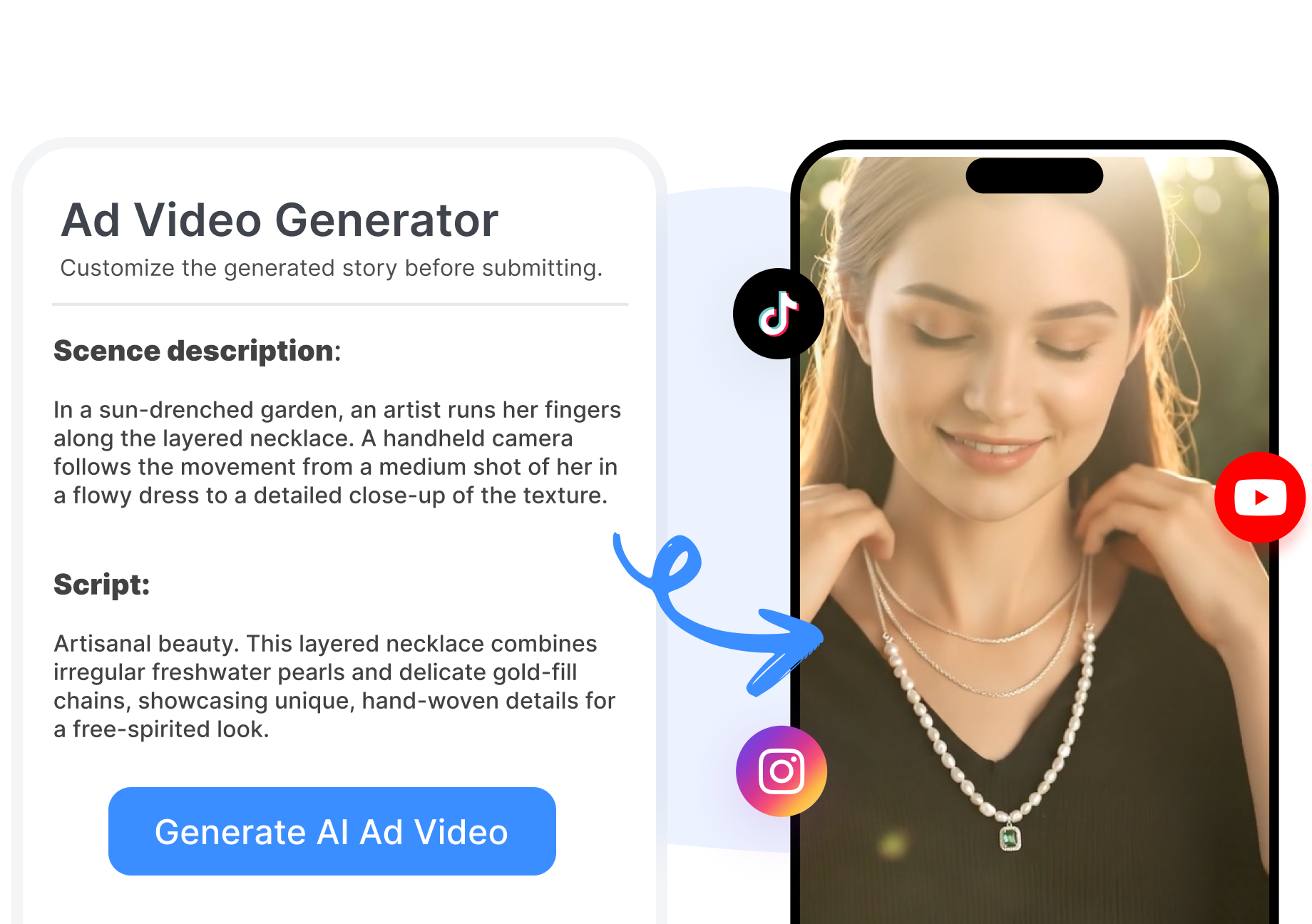
AI Video Ad Generator Built for Ads People Watch
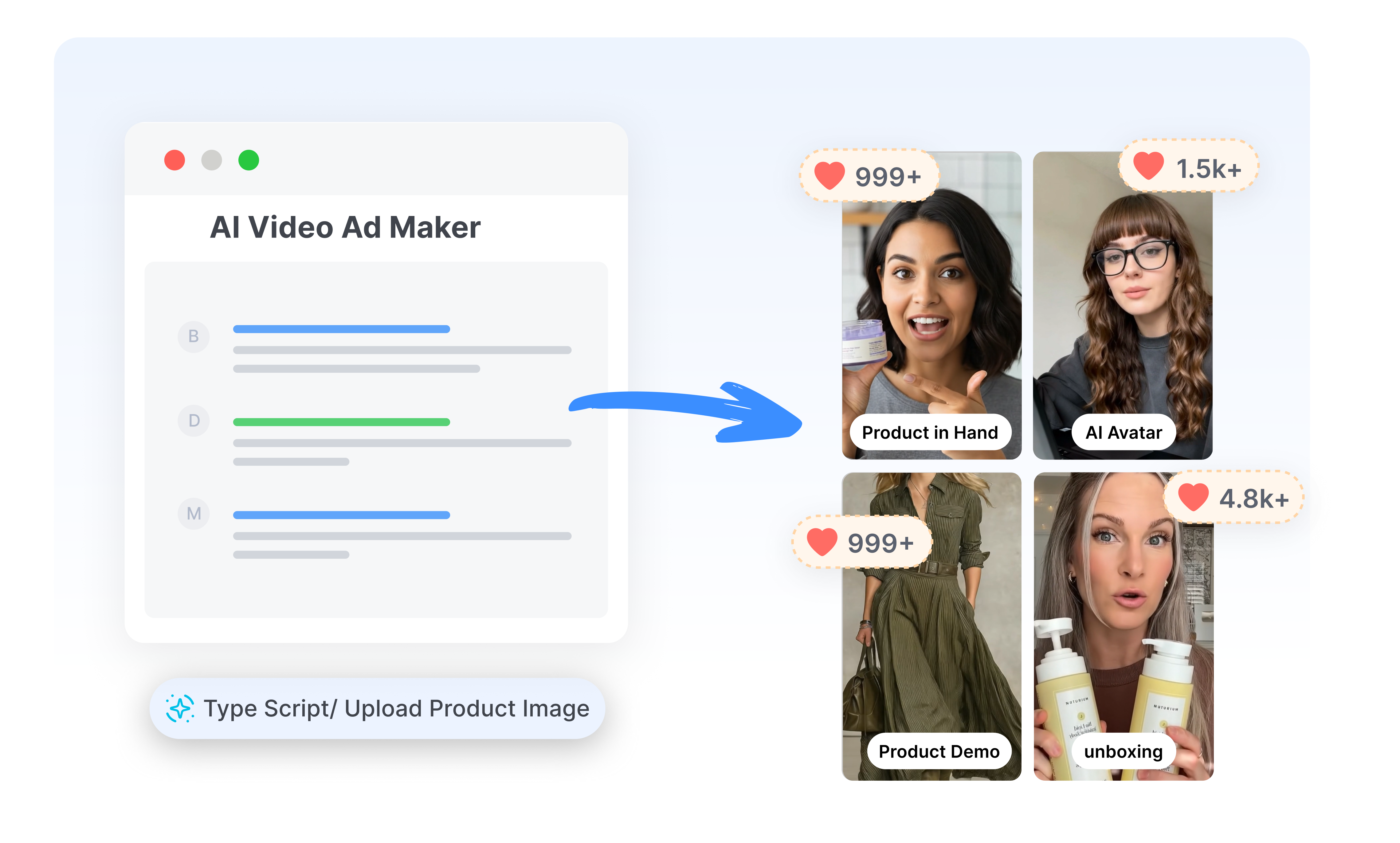
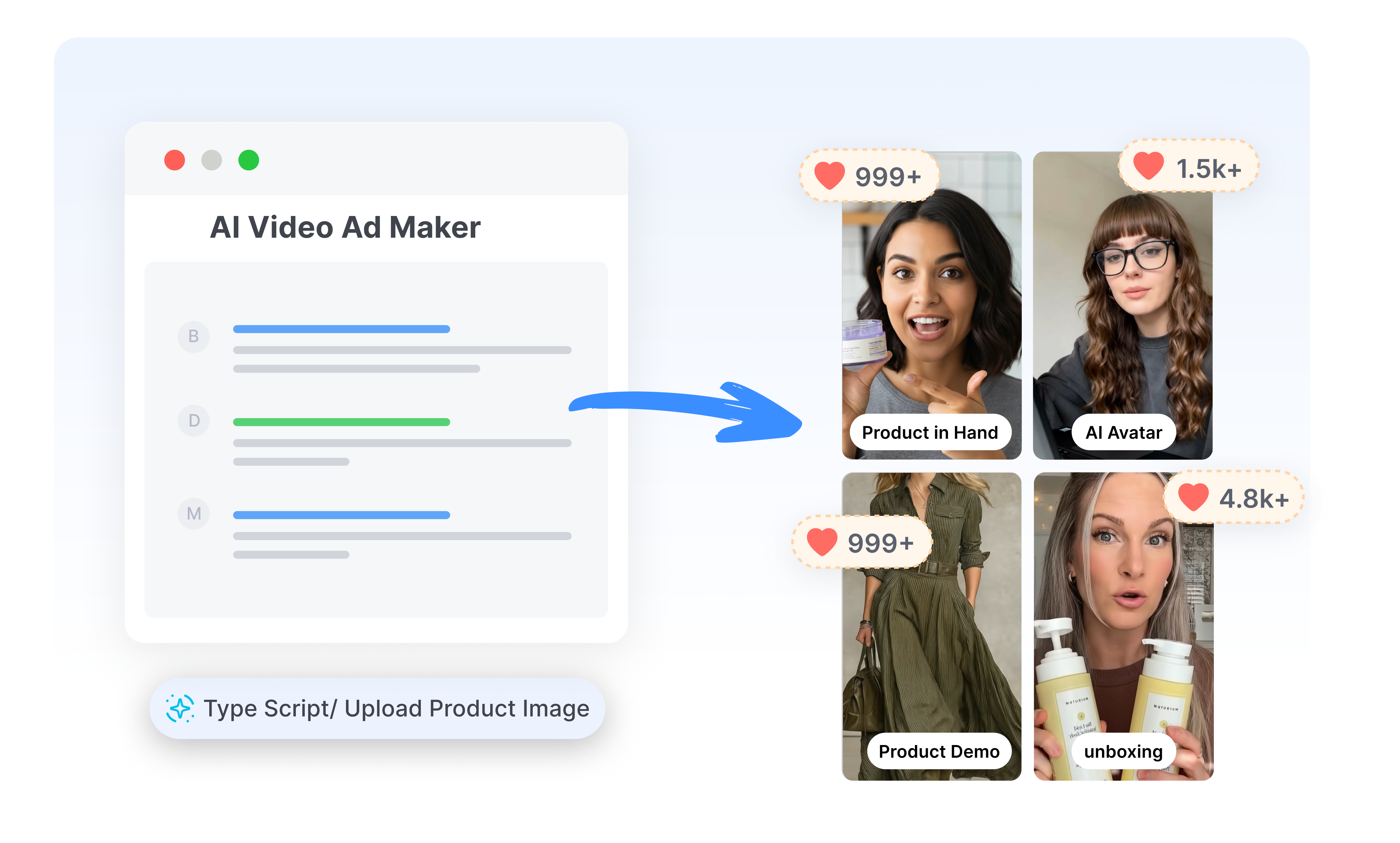
Turn Product Images into Ad Scenes
Upload a product image and describe the scene you want to create. Use Image & Text, reference assets, or first-and-last frames to shape how the product enters, moves, and finishes. Build an ad around your actual product instead of settling for unrelated stock footage.
Pick the Ad Format That Fits
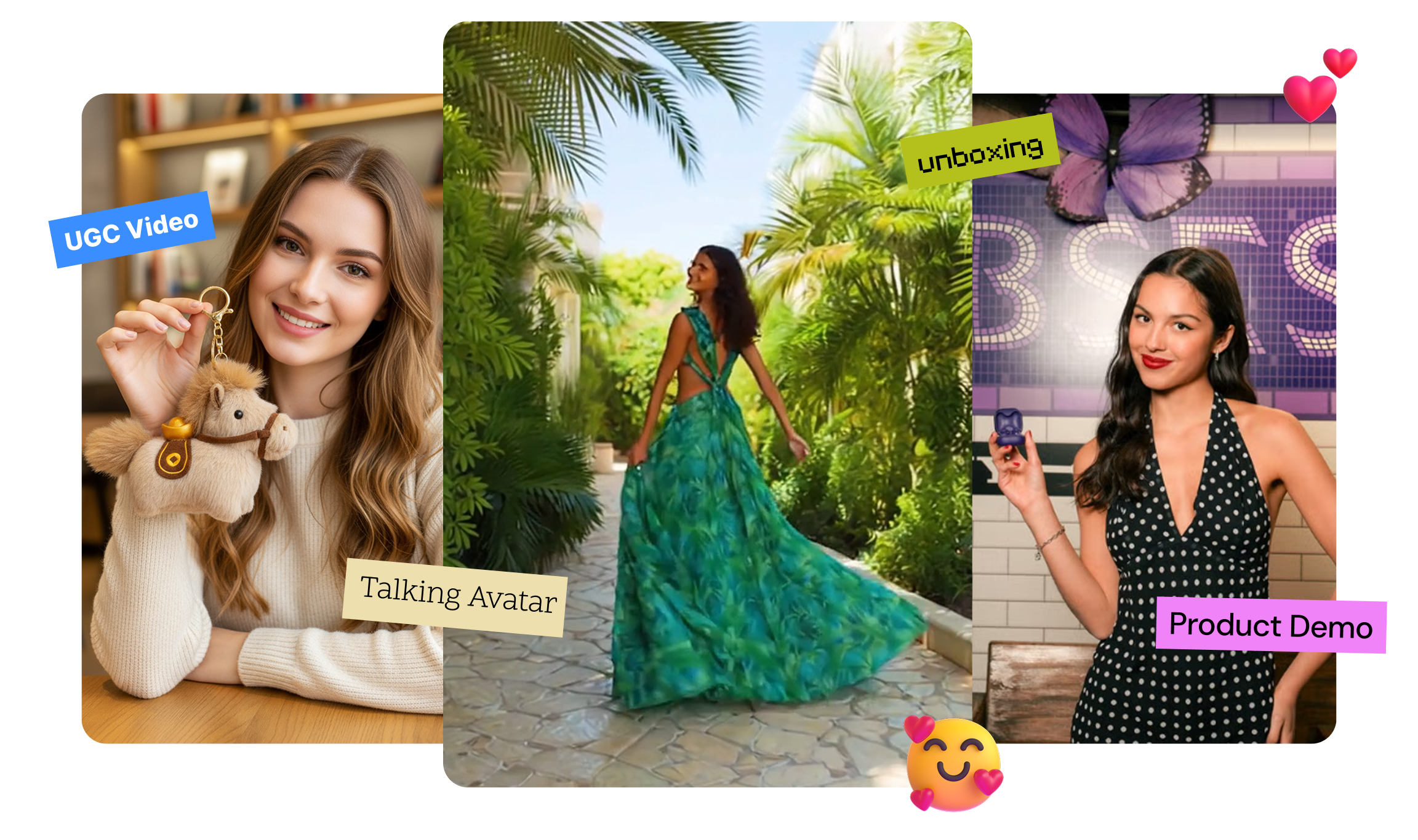
Choose UGC, Product Demo, Talking Head, TVC Style, Customer Review, Pain Point Solution, Unboxing, or another available format. Match the creative structure to the product, audience, and placement instead of forcing every campaign into one template. Move from a rough idea to an ad direction your team can review.
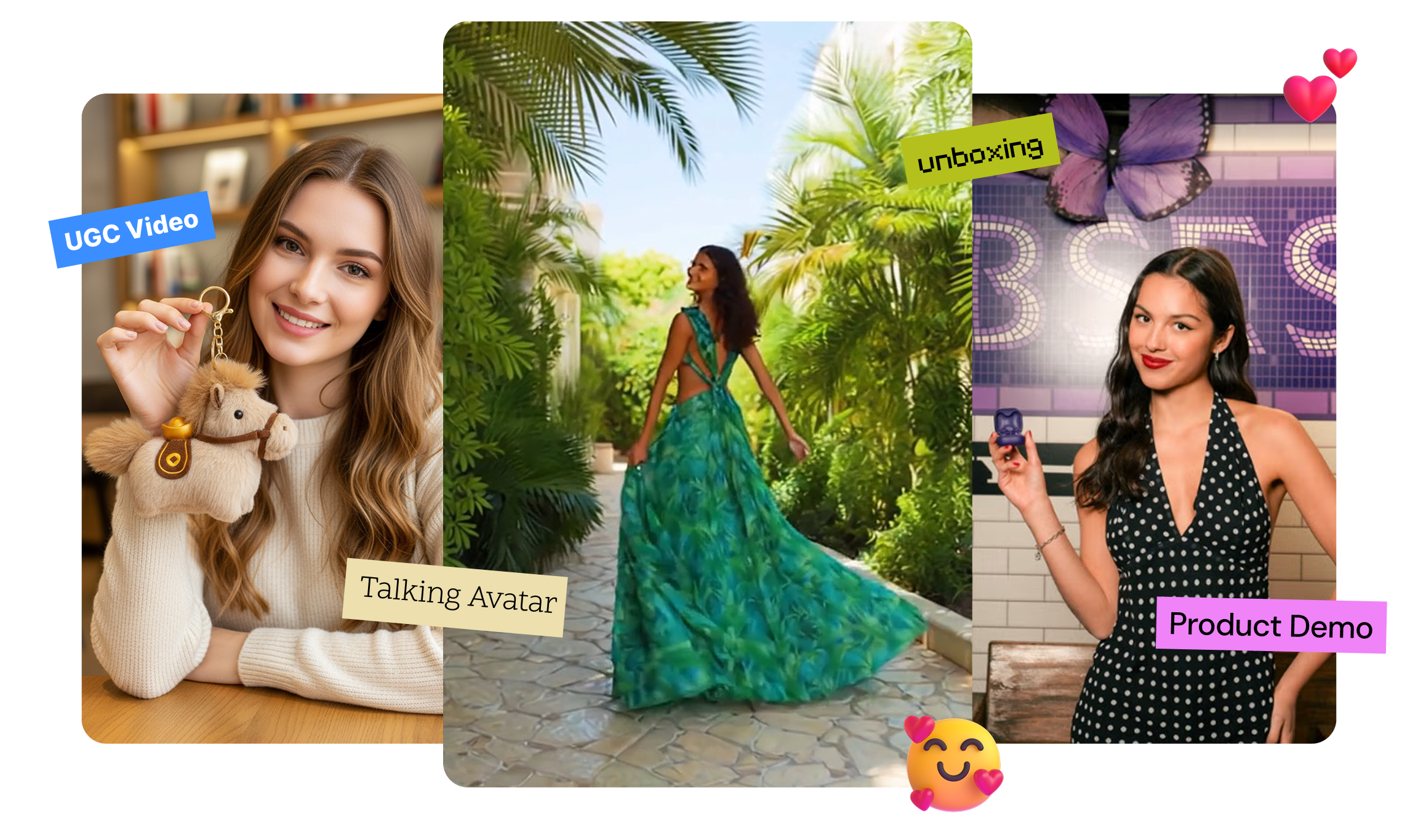
Put a Face Behind the Pitch
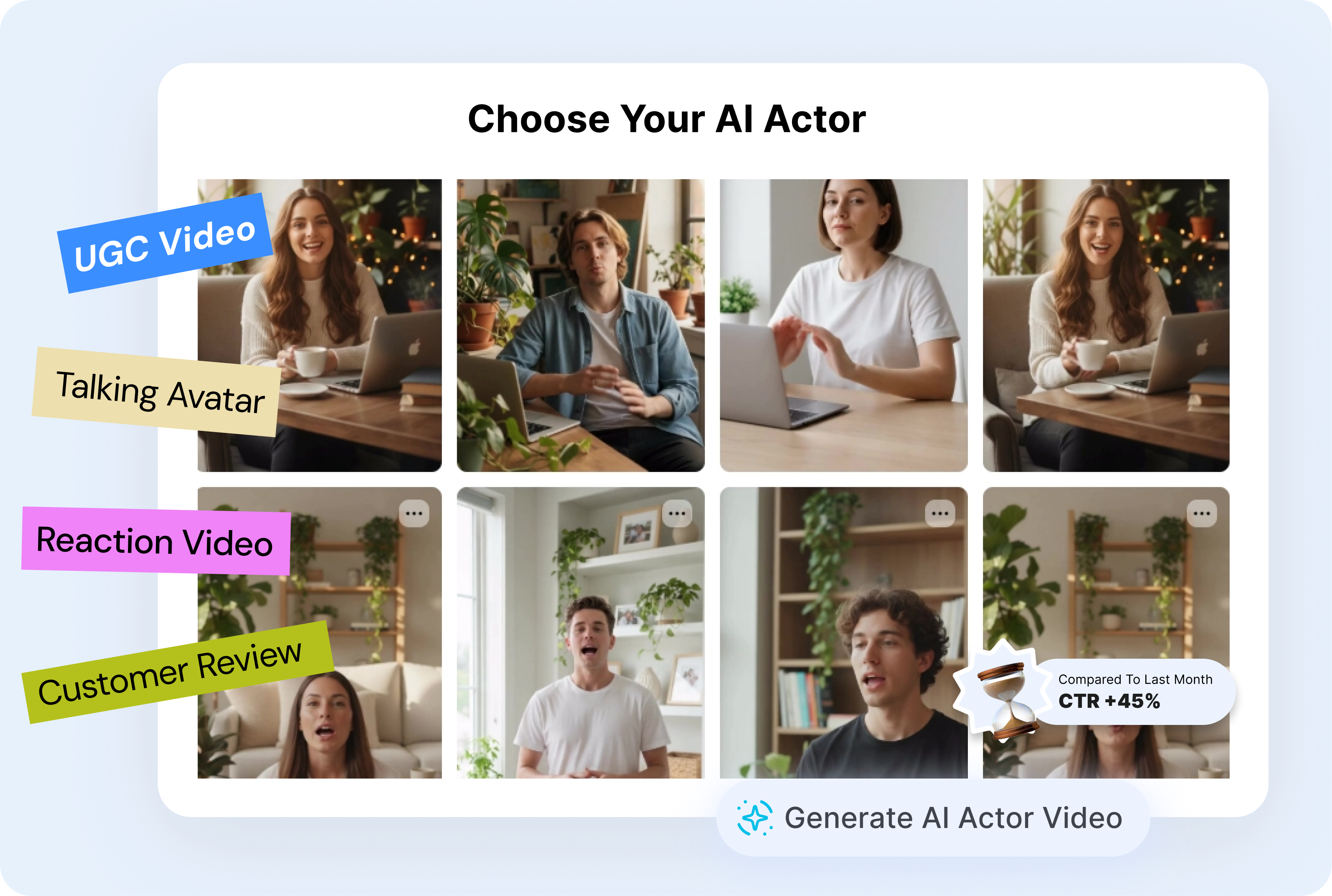
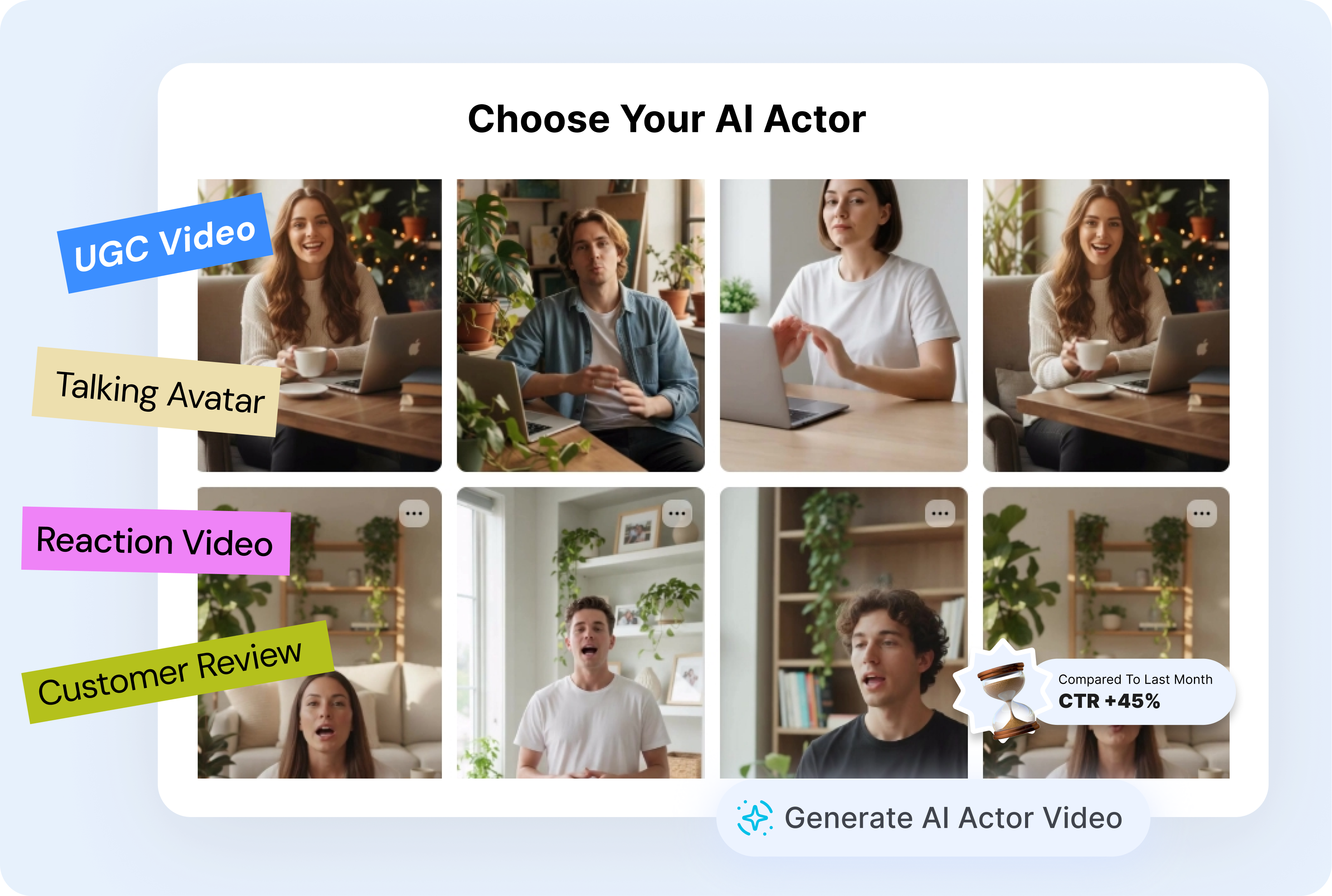
Select an actor when your concept needs a presenter, reviewer, or creator-style voice. Pair the actor with your product image and ad brief for UGC, talking-head, reaction, or customer-review formats. Give the message a human focal point without arranging a new shoot for every concept.
Generate More Than One Direction
Never run out of creatives. Simply upload a reference image or product details, and let the AI generate up to 10 variations instantly. Perform rapid A/B testing to find your winner, beat creative fatigue, and scale your ads with fresh content daily.
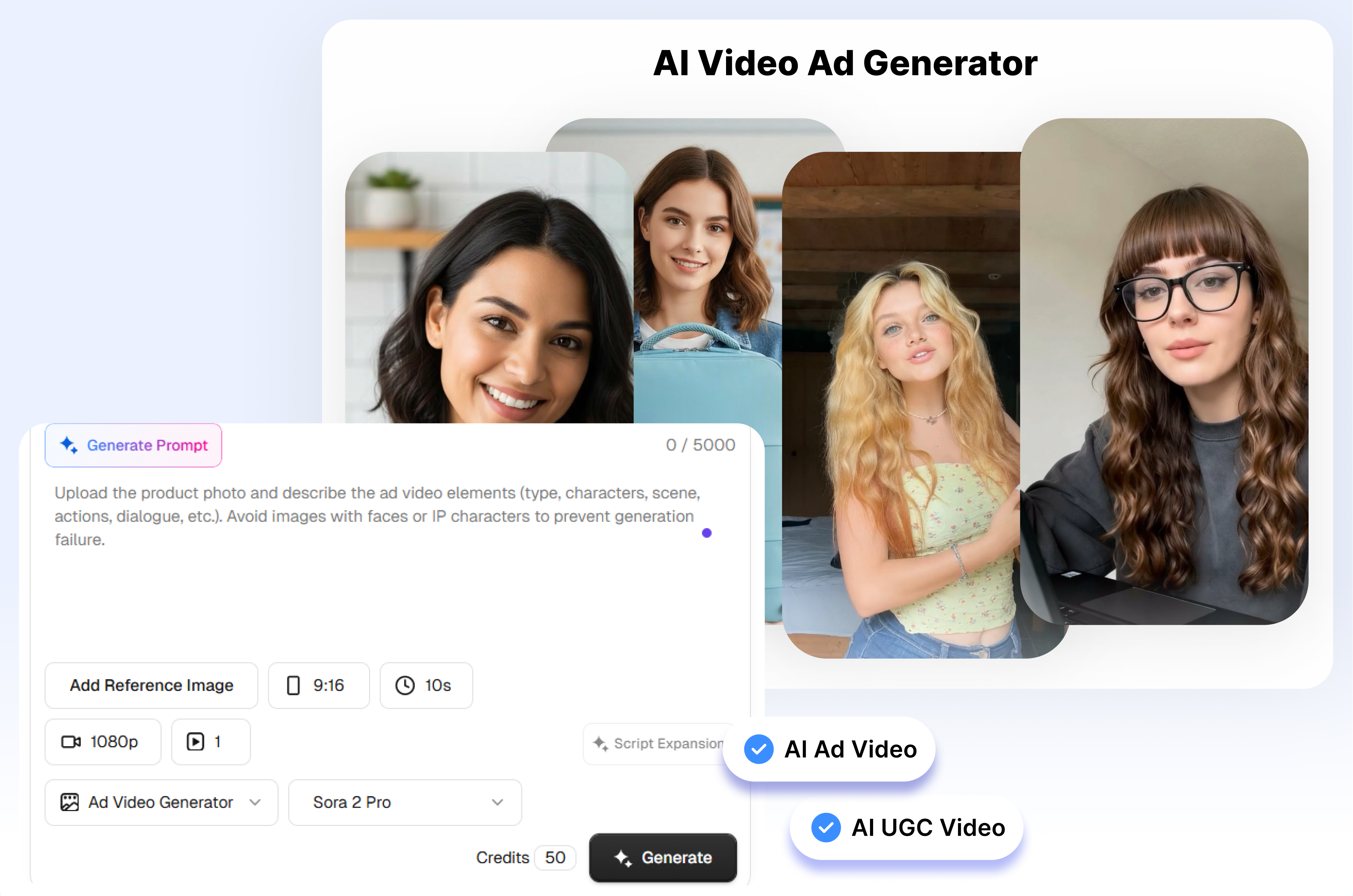
How to Use the Best AI Video Ad Generator ?
Step 1: Add Your Product or Reference
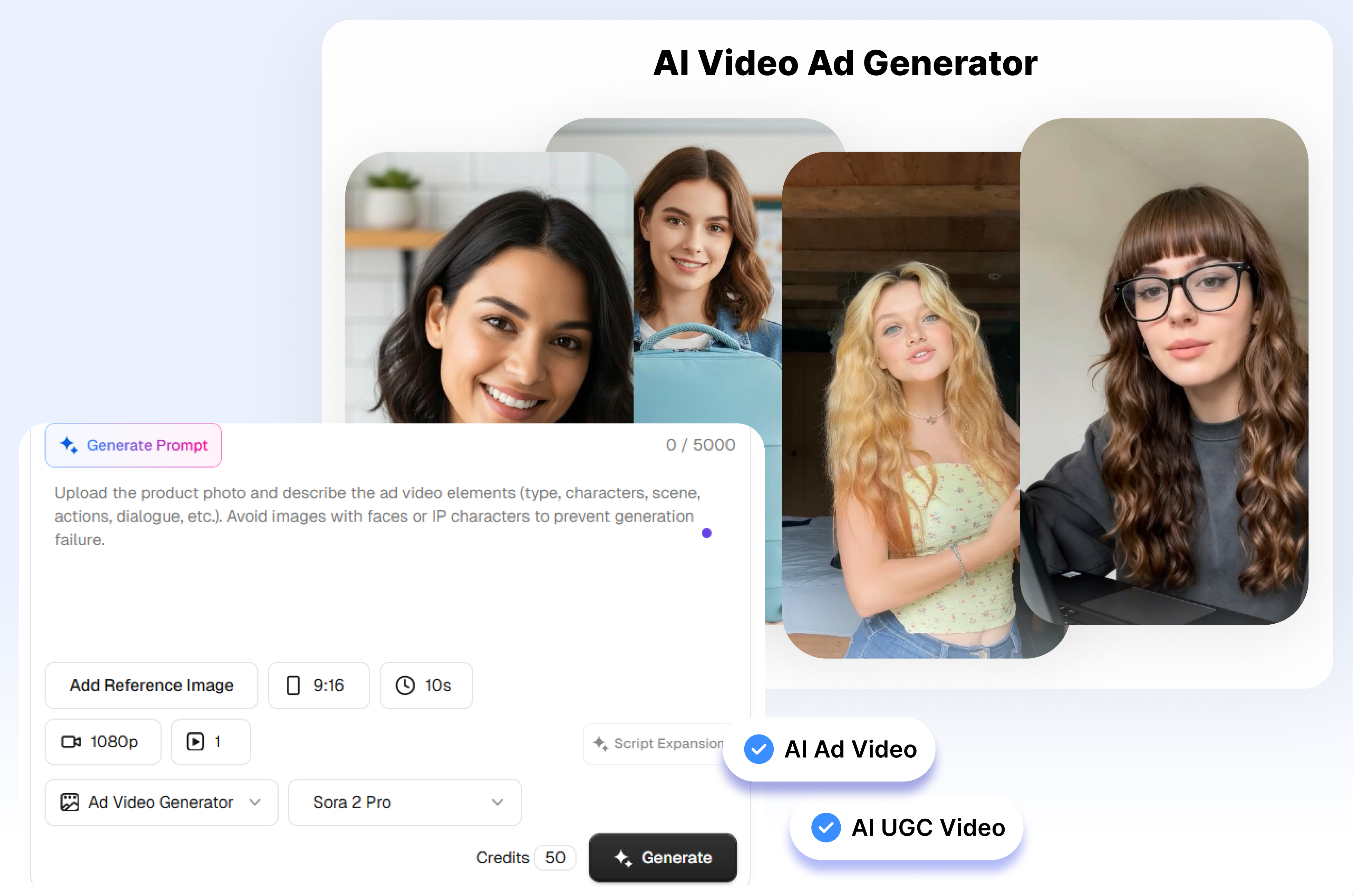
Upload a product image, reference image or video, or a pair of opening and ending frames. Add a short prompt describing the scene, offer, or message.
Step 2: Build the Ad Setup
Pick an ad type such as UGC, Product Demo, Talking Head, or Unboxing. Choose an actor when needed, then set the language, frame, model, and sound options.
Step 3: Generate and Compare
Choose how many variations you want and generate the videos. Review the different directions, keep the strongest concept, and refine the next version from there.
Who Needs This AI Video Ad Generator?
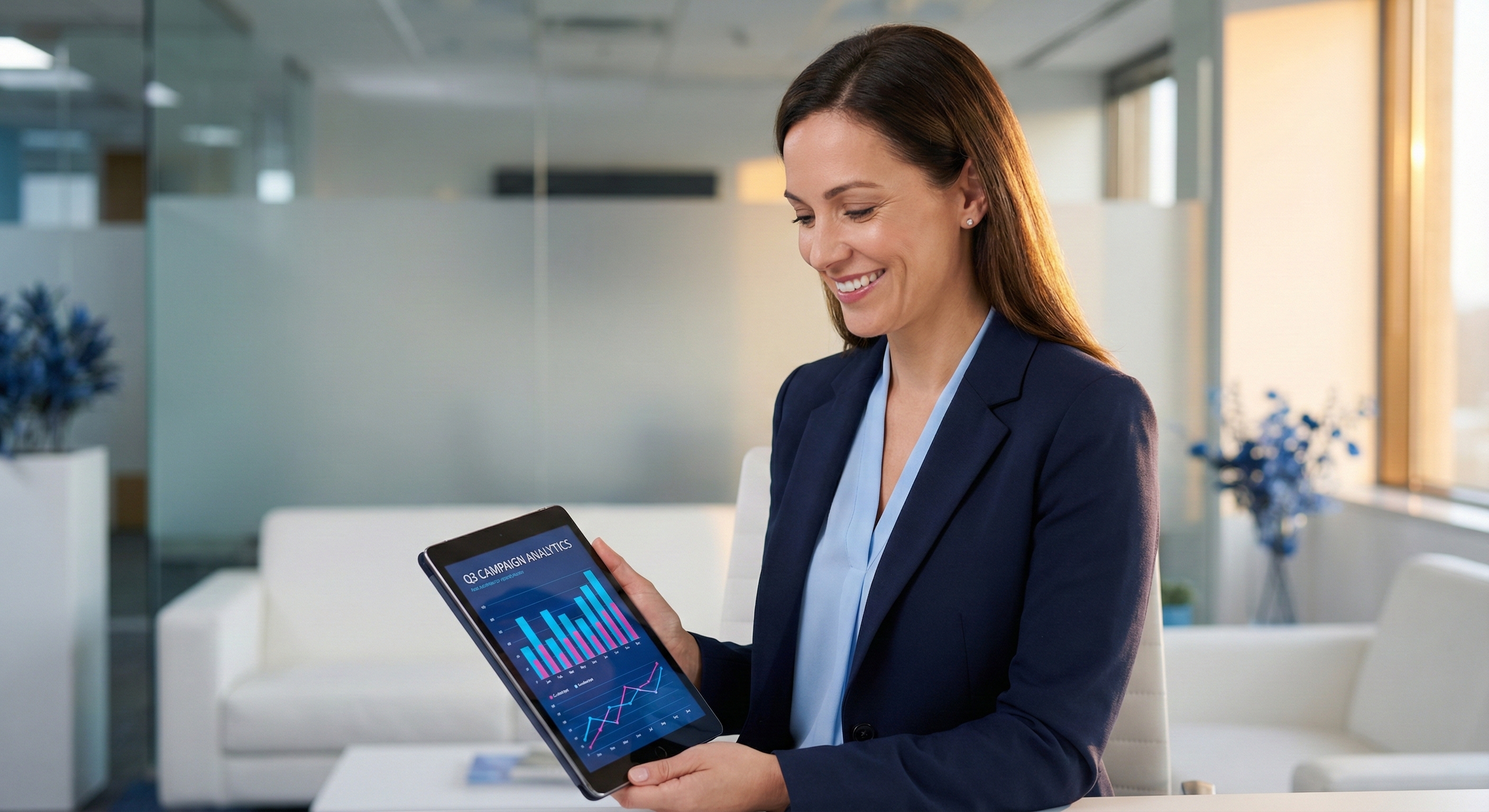
Performance Marketers
Build several creative directions from the same brief without coordinating a new shoot. Compare hooks, formats, actors, and visual setups before sending ads into testing.

Ecommerce Brands
Turn product images and campaign ideas into demos, unboxings, reviews, and UGC-style ads. Create new directions for launches, offers, and always-on social campaigns.
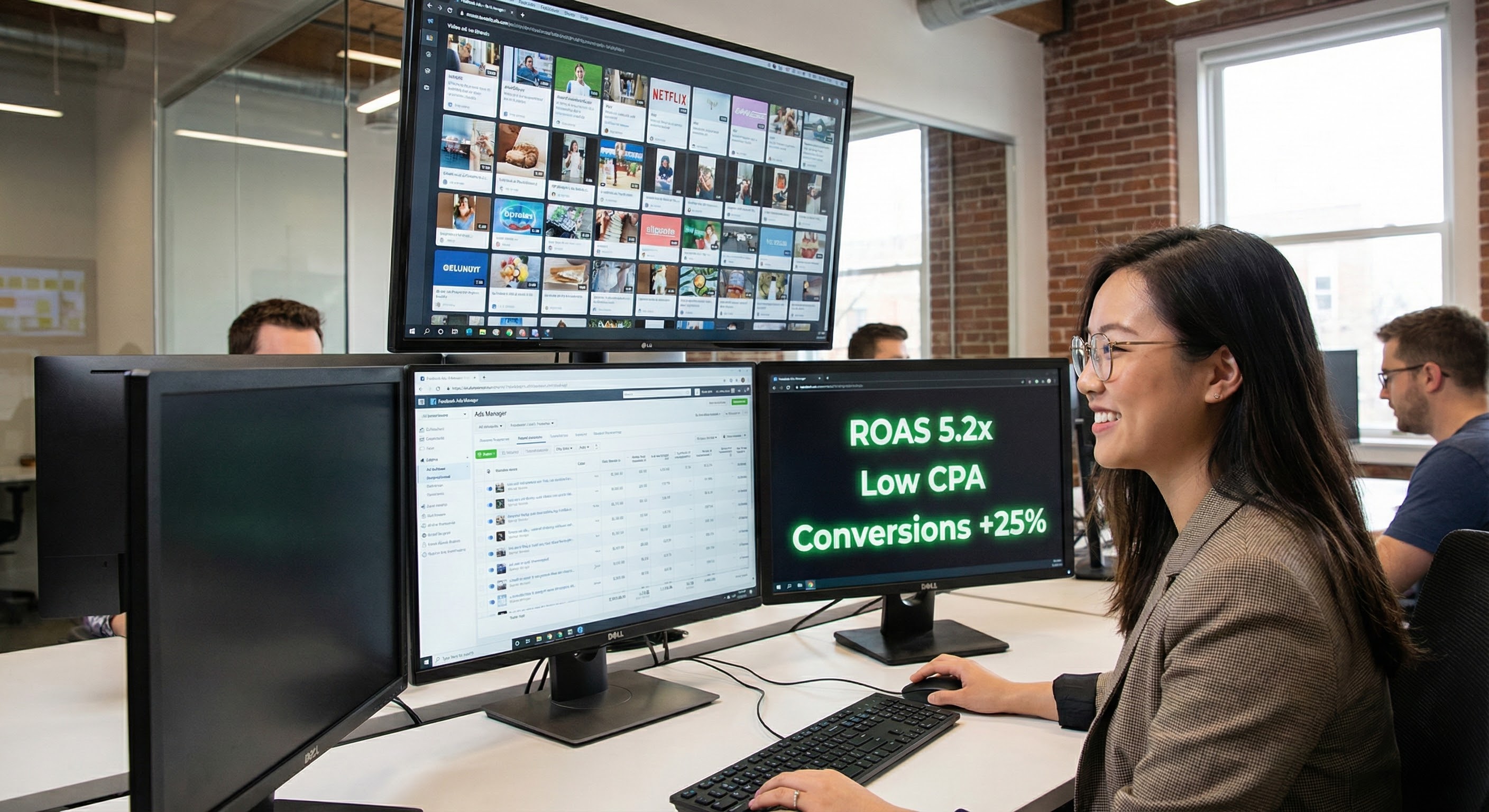
Creative Agencies
Develop video ad concepts for different products, audiences, and placements in one workspace. Give clients concrete options instead of presenting another static storyboard.
Frequently asked questions
An AI video ad generator turns product assets and a short creative brief into video advertising concepts. In Nextify.ai, you can start with images, text, reference assets, or selected frames, then choose an ad type and generation settings.
Yes. Nextify.ai offers a free AI video ad generator trial. Simply sign up, choose a template, and generate your first video to test our ad video maker capabilities before upgrading for more features.
Yes. Upload a product image, describe the scene or motion, and use the Image & Text workflow to generate a video around it. You can also use reference assets when you need more visual direction.
Available directions include UGC, Product Demo, Talking Head, TVC Style, Lifestyle, Customer Review, Pain Point Solution, Unboxing, and Reaction videos. Choose the format that matches the product and campaign message.
Yes, you can create video ads from references. The Reference workflow accepts visual assets that help guide characters, scenes, style, or motion. The Viral Video Cloning workflow also supports a reference-led setup for rebuilding a video structure with new source material.
Nextify AI integrates the world's most advanced engines into our platform, including Sora 2 Pro, Veo 3.1, and Kling 2.6. These cutting-edge models ensure your creatives feature fluid motion and realistic physics.
Absolutely. We specialize in UGC video ads and vertical video formats (9:16). Our tool creates content with a native feel, making it the best AI video generator for ads on social platforms like TikTok, Reels, and Shorts.
Yes. You own the commercial rights to the AI video ads you generate. They are optimized for paid social campaigns on Facebook, TikTok, YouTube, and more to help you act as a powerful ROAS booster.
Creative fatigue happens when audiences get bored of seeing the same ad. Our ad generator allows you to create dozens of variations in minutes, enabling constant A/B testing to keep your performance high.