Canva AI Ad Generator
Canva AI is an AI-assisted design environment for creating editable static, video, and social ads. Start with a prompt, website, or Canva template, then use Magic Studio and the Canva editor to refine media, brand styling, layouts, and campaign formats.
Explore the Canva AI Ad Generator Workflow
Move from a first concept to editable campaign assets with Canva's AI, design, and ad-management tools.
Shape an Editable First Draft
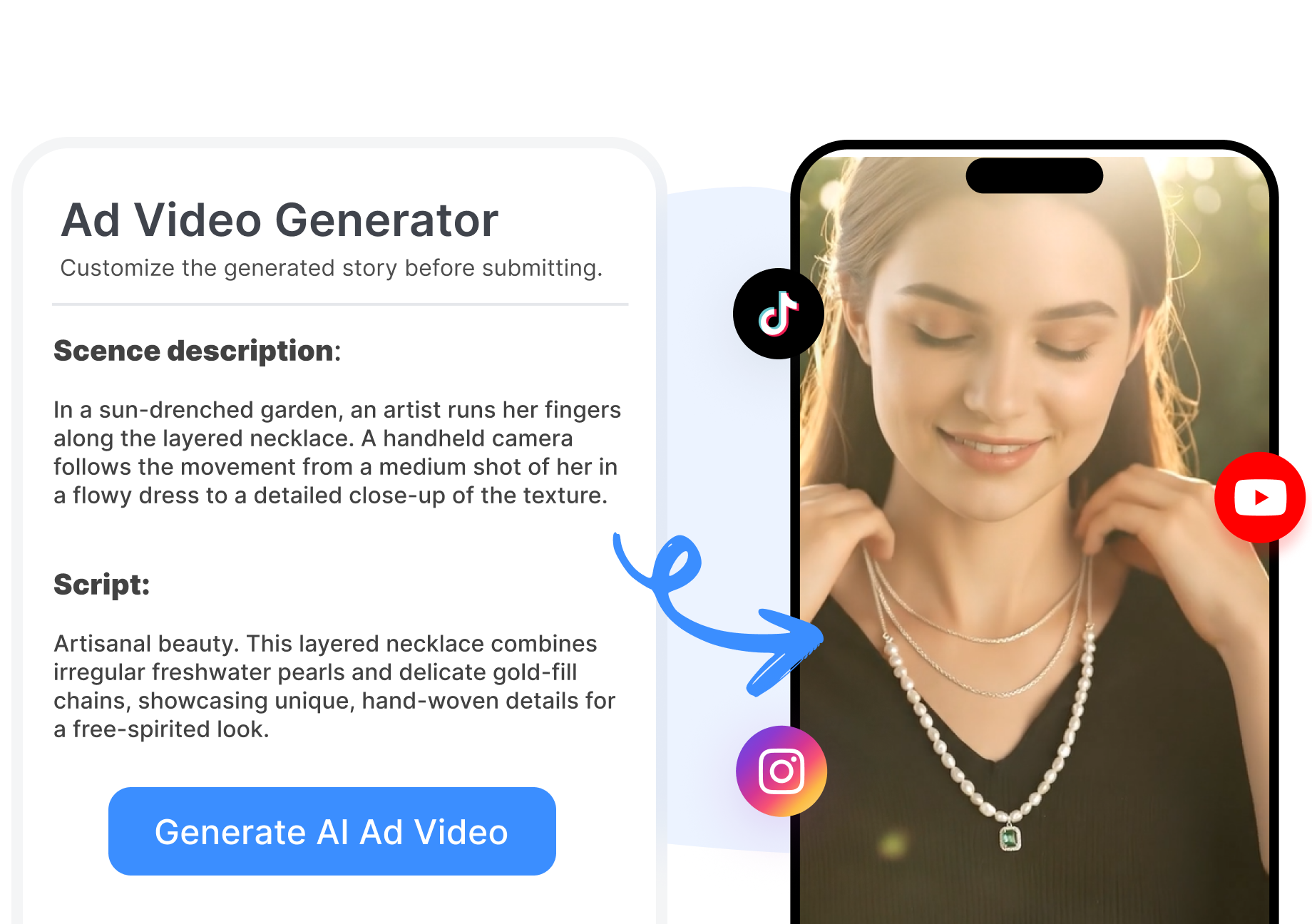
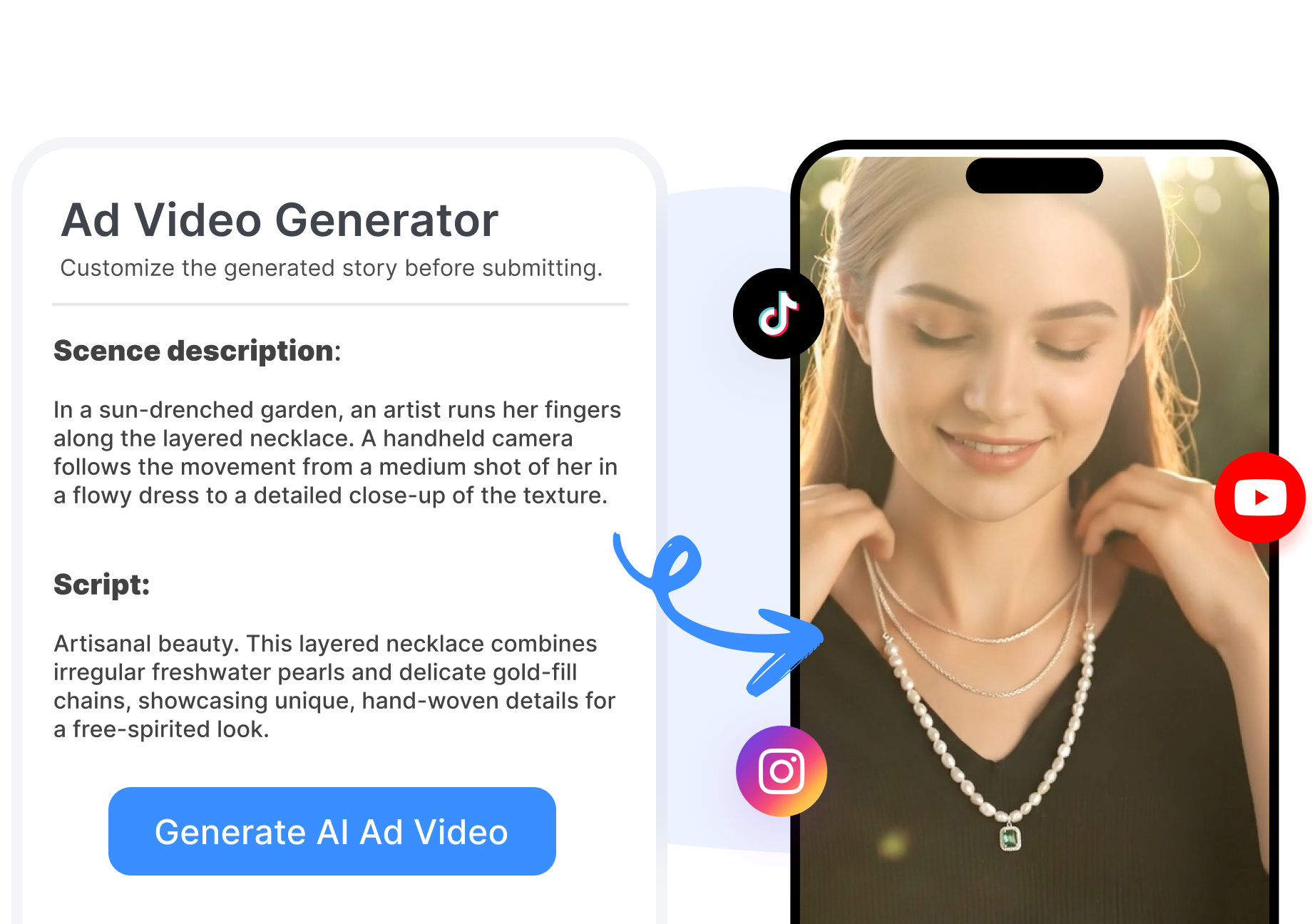
Canva AI provides prompt-based design generation with layered elements that remain editable. Describe the offer, audience, or visual direction, then adjust the copy, images, colors, and hierarchy in the Canva editor. Use that flexibility to refine an AI ad creative without rebuilding the full layout.
Mix Templates with Generated Media
Canva combines ad templates with Magic Studio tools for generating or editing images, copy, and short video. Choose a social, display, or video ad layout, then replace stock elements with campaign-specific media. Keep familiar editing controls close by when an AI draft needs a more brand-specific finish.
Build and Launch More Variations
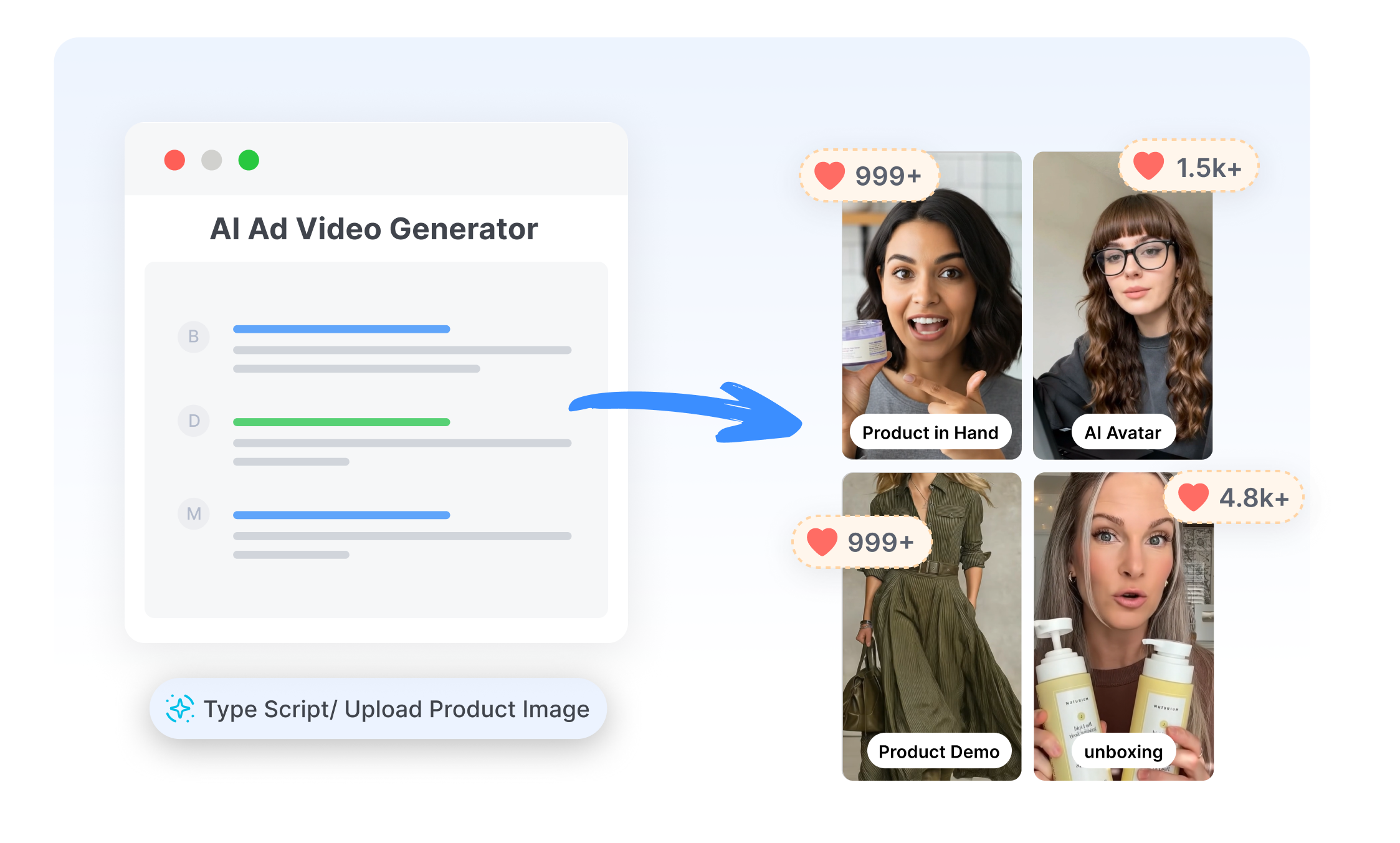
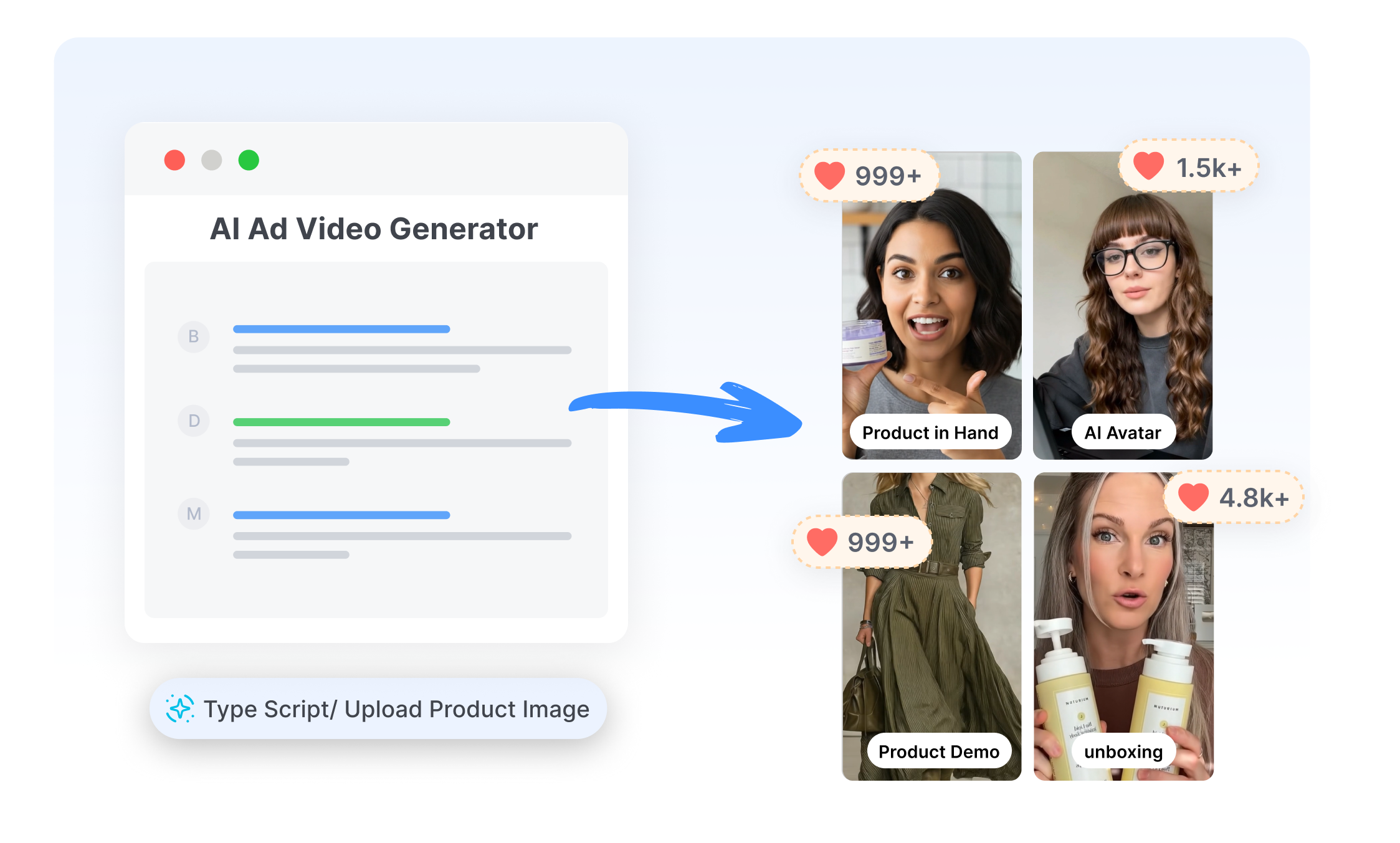
Canva supports batch creation of ad creatives through Bulk Create, Resize, and the Canva Grow workflow. Feed campaign data into multiple designs, adapt sizes, or generate editable ads from a website in Canva Grow. Connect supported Meta, TikTok, and LinkedIn accounts when direct publishing and performance review fit the available setup.
Create Ads with the Canva AI Ad Generator in 3 Steps
Choose a starting point, refine the creative in Canva, and prepare each format for its destination.
1. Choose a Starting Point
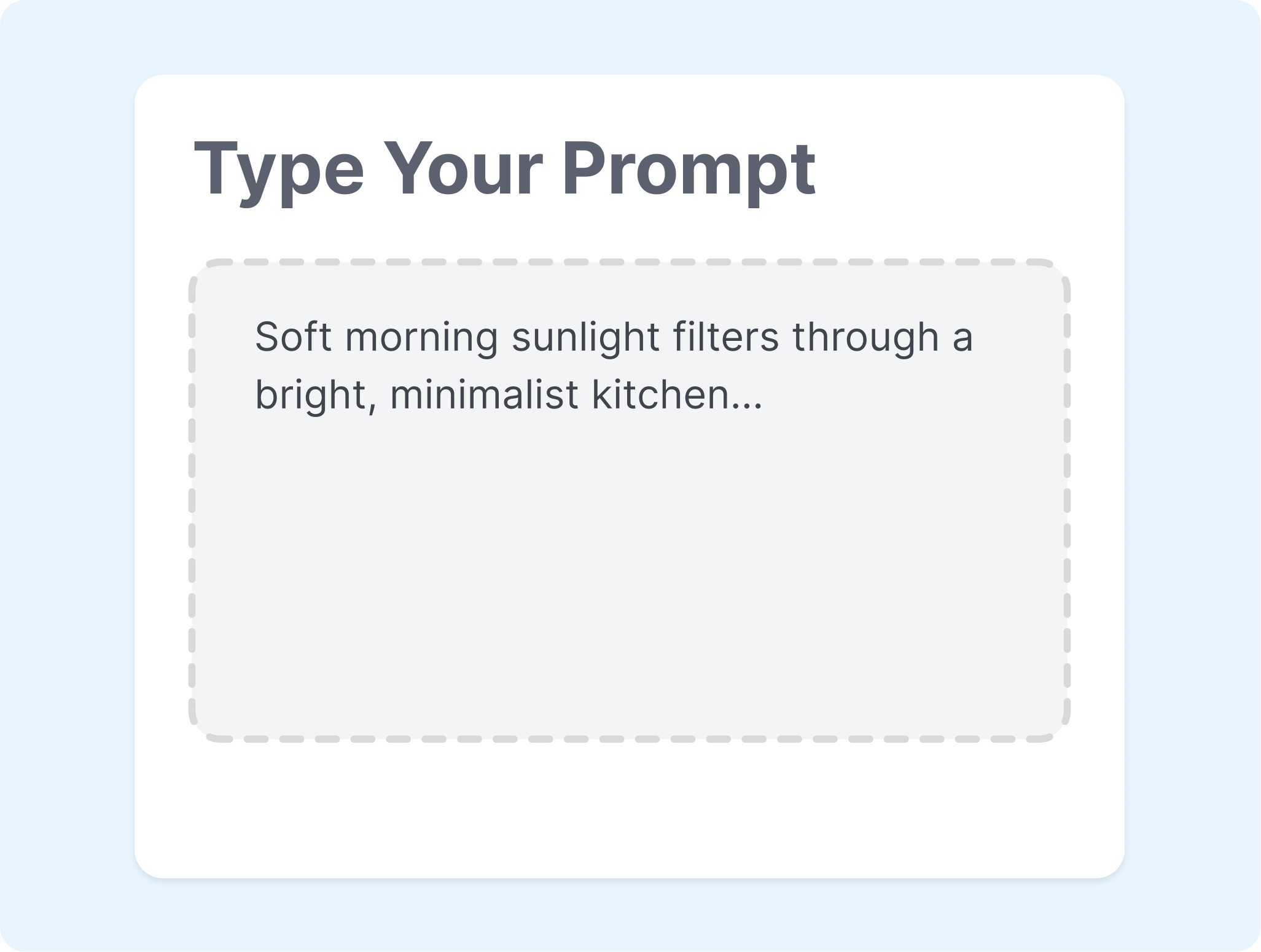
Open an ad template, describe the campaign to Canva AI, or add a website in Canva Grow. Bring in the logo, product visuals, and copy that should guide the draft.
2. Build the Creative
Generate a layout or media, then place the strongest direction in Canva's editor. Adjust the message, colors, type, footage, or animation for the intended channel.
3. Resize and Deliver
Create the required formats with Resize or Bulk Create when those tools are available on the plan. Download the files, share them for review, or publish through a supported Canva Grow connection.
Who Uses the Canva AI Ad Generator?
Create and adapt Canva AI ads for day-to-day promotion, paid campaigns, and multi-channel brand work.
Small Business Owners
Build sale graphics, product promotions, and local advertising without starting every design from a blank canvas. Canva templates and editing controls make it easier to keep everyday campaign assets visually consistent.
Social Media Teams
Turn one campaign direction into posts, stories, banners, and short video ads for different feeds. Resize and scheduling options can help carry approved creative into a broader content calendar.
Performance Marketers
Use Canva Grow to generate ad directions from a website and connect creative work with supported paid-media accounts. Review access, publishing support, and plan limits before making it the center of a campaign workflow.
Creative and Brand Teams
Give non-designers a structured way to work from templates while designers retain control over the final layout. Brand Kits, shared editing, and review flows help teams keep campaign output aligned.
FAQs
What is the Canva AI Ad Generator?
What can Canva AI create for ads?
How does the Canva AI Ad Generator work?
How are Canva AI and Magic Studio different?
Can Canva create video ads with AI?
Can Canva make multiple ad variations?
What is a good alternative to the Canva AI Ad Generator?
Looking for Another Option? Explore Nextify.ai as a Canva AI Ad Generator Alternative.
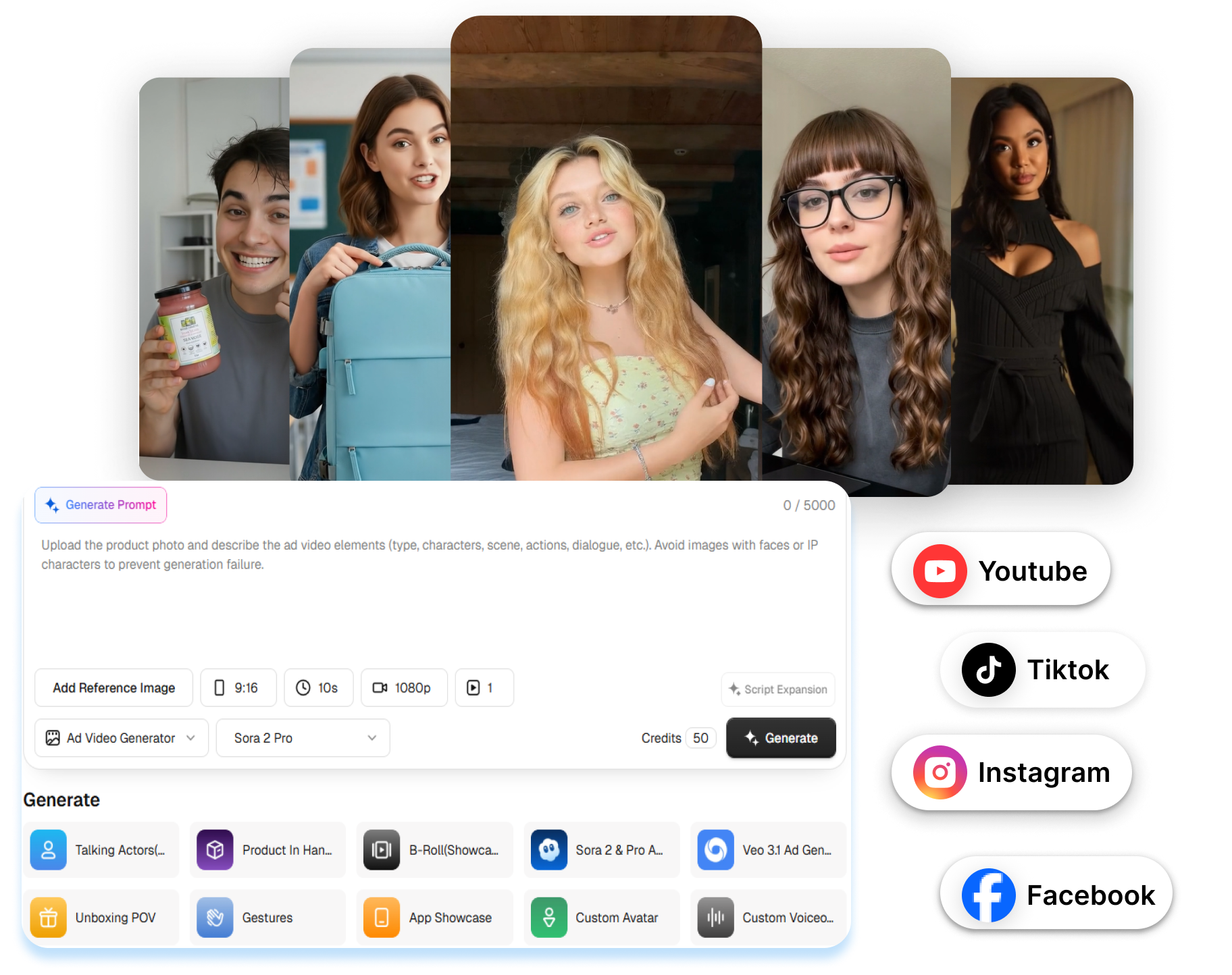
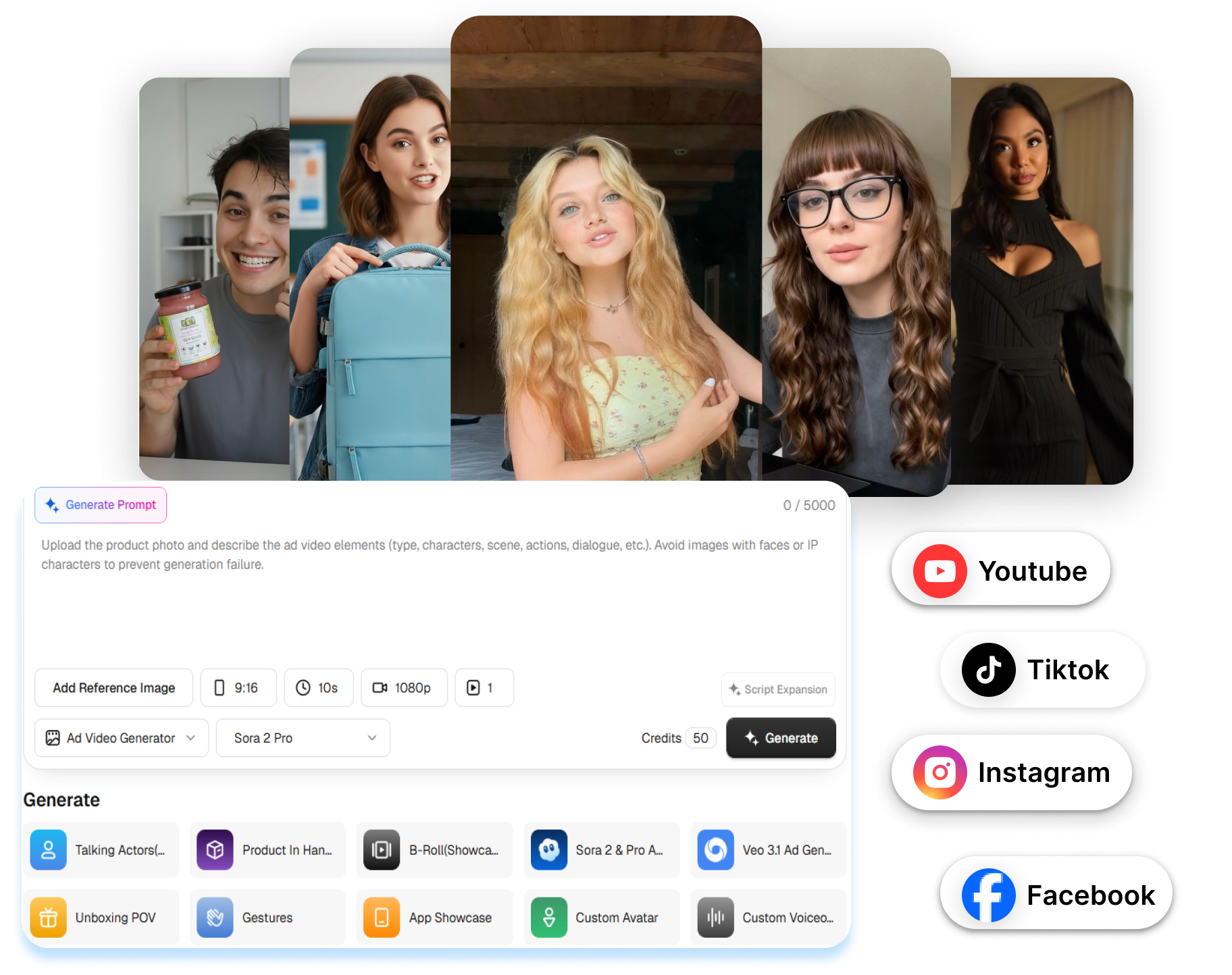
Explore Nextify.ai to turn product URLs, product assets, scripts, and winning references into avatar videos, UGC ads, product videos, marketplace listing image sets, and reusable marketing creatives in one workspace.